
Monitoring Time on Task
The Time on Task page shows how students allocate time across five writing process activities: research, analysis, synthesis, writing, and AI assistance. This guide explains how to interpret student engagement data and support process-focused learning.
Process Over Product
Traditional grading focuses on final papers, but learning happens throughout research, analysis, and synthesis. Time on Task reveals the writing process, not just final deliverables. Think of it as "show your work" for writing.
Time on Task helps you:
Identify where students need support, such as if they skip the synthesis stage
Use concrete data in student and parent conferences
Verify authentic student work through process evidence
Support personalized learning based on individual work patterns
Understanding Activity Types
Time on Task tracks five activity types:
Research - Time spent saving sources to assignment libraries
Analysis - Time spent annotating sources
Synthesis - Time spent organizing information in outline format
Writing - Time spent in documents created by the teacher
AI - Time spent using Rese, Scrible's AI research assistant
Time is tracked in 5-minute blocks of activity. Only work within Scrible counts toward these totals. General search engine time, external research, or writing in other tools doesn't appear in the data. The Total column shows combined time across all activities.
Viewing the Class Table
Navigate to Assignment Overview and click the Time on Task tab. The Class Table appears by default.
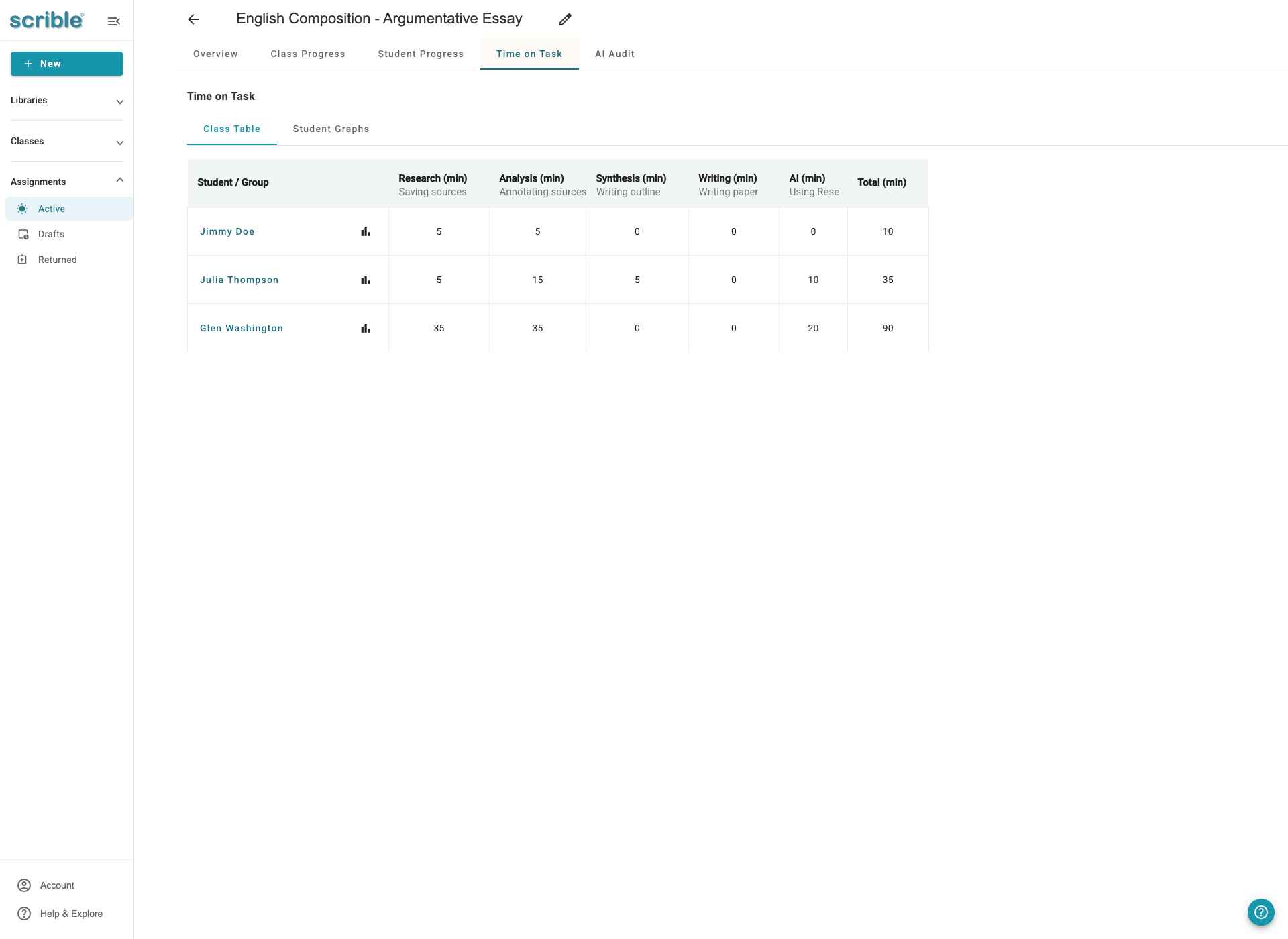
The table shows one row per student:
Student names are clickable links that open Assignment Library Review (see the "Monitoring Student Progress" article)
Time columns show minutes spent per activity type
The bar graph icon next to each student name opens a detailed view covered later in this article
The Total column shows combined time across all activities
The columns shown depend on how you configured the assignment. If you didn't enable documents, the Writing column won't appear. If you didn't enable outline, Synthesis won't show.
Use the table to identify patterns. Students with balanced time across activities show a healthy process. Students with zeros in critical areas may be skipping important steps. Students with unusual patterns, such as all writing with no research, may need support.
Viewing Student Graphs
Click the Student Graphs tab. This view shows miniaturized stacked bar graphs for all students.
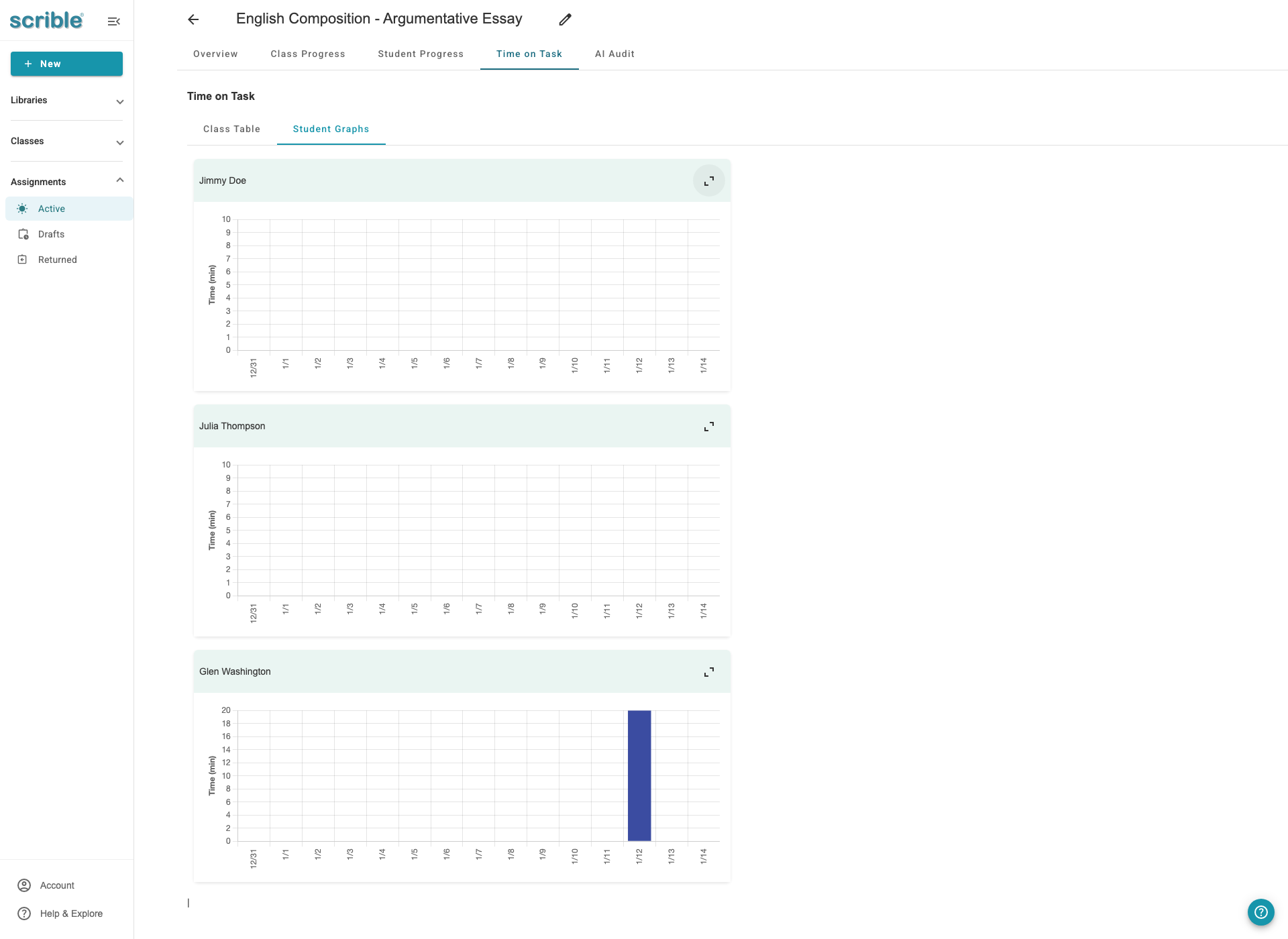
The timeline shows when students worked on different activities. You can compare the entire class at a glance. Each student's graph shows time distribution over the assignment period.
The stacked bars are color-coded by activity type. Dates appear on the x-axis. The height of bars indicates time spent on that date. You can quickly scan to see which students are working and when.
Click the expand icon in the top right of any student's mini-graph to see a detailed view.
Viewing Work Progress Detail
You can access the Work Progress Detail view in two ways. From the Class Table, click the bar graph icon next to a student name. From Student Graphs, click the expand icon on a student's mini-graph. Both open the same view.
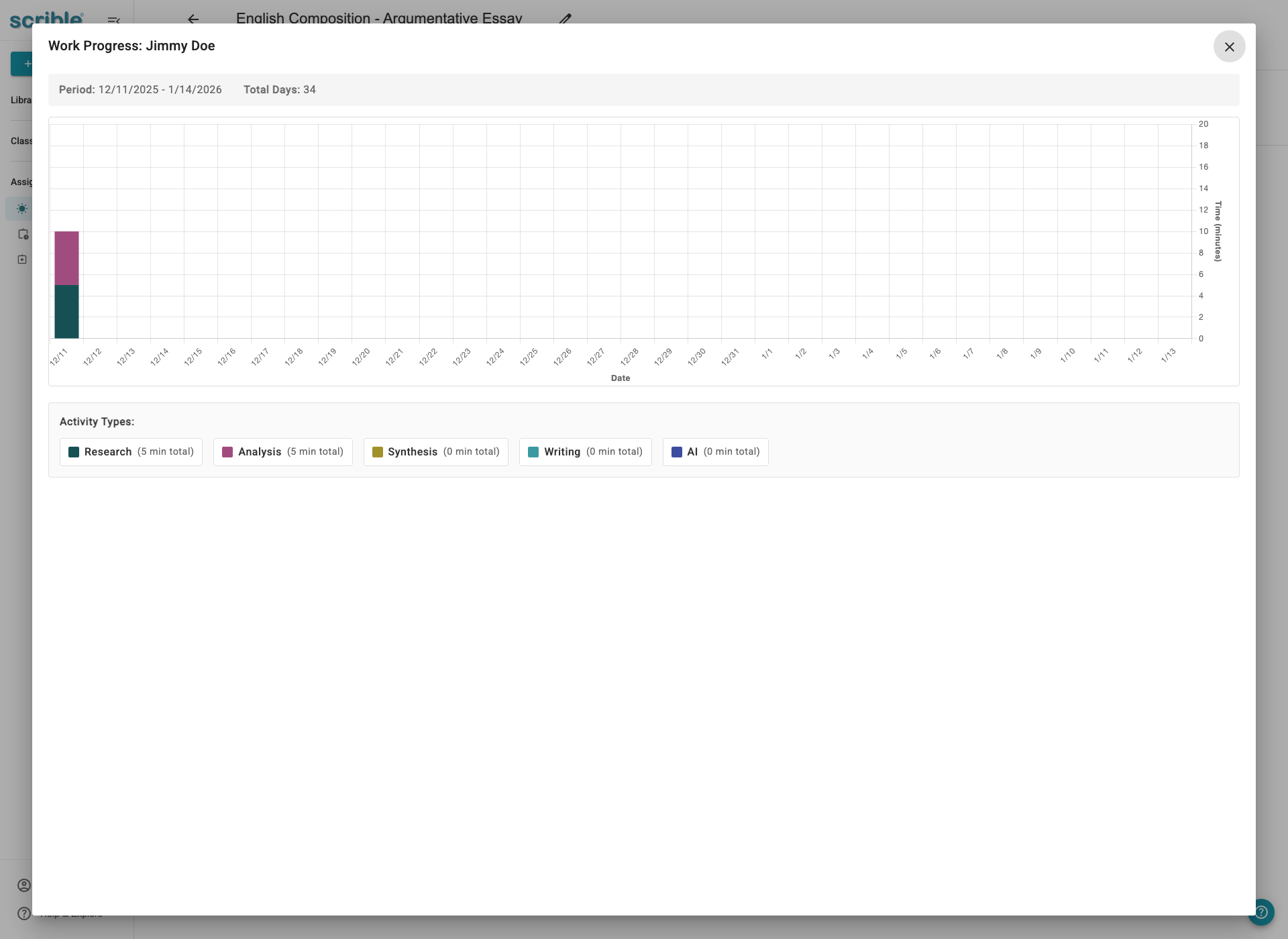
The detailed graph shows a larger, more readable stacked bar chart for one student. The timeline appears with dates on the x-axis and time in minutes on the y-axis. Color-coded activity types are stacked to show distribution. This view makes it easier to read patterns for long assignments or detailed analysis.
Use this view to identify when the student was most active. See which activities the student prioritized on different dates. Spot gaps in engagement by looking for dates with no activity. Prepare for conferences with specific date and time data.
Tips
Assignment configuration affects columns: The activity columns shown depend on how you configured the assignment. If you didn't enable documents, the Writing column won't appear. If you didn't enable outline, Synthesis won't show.
5-minute increments: Activity time is tracked in 5-minute blocks, so brief sessions may not register. Encourage students to work in focused sessions for accurate tracking.
Documents must be teacher-created: Writing time only tracks work in documents you created within the assignment. Student-uploaded documents aren't tracked.
Only Scrible work is tracked: Time on Task captures work done within Scrible. External research, writing in other tools, or offline work won't appear in the data.
Conference preparation: Use Time on Task data to prepare for student or parent conferences. Point to specific dates and activities to show concrete evidence of engagement.
Process coaching: Use time data to help students develop balanced research and writing habits, not just to monitor completion. Focus on improving their process, not just tracking it.
Student Library link: Click any student name to open their Assignment Library Review, where you can see their actual work alongside the time data.