
Creating and Editing an Outline
Outlining transforms your research into a structured, coherent piece of writing. Scrible's Outline feature helps you organize notes and sources, drag annotations into outline points, and build the backbone of your paper directly within your library.
The Outline feature is available to Scrible Edu Pro users only; to check your current subscription, go to your account settings.
What Is the Outline Feature?
The Outline feature helps you:
Organize your notes and sources into a coherent structure
Drag annotations from your library into outline points
Group and reorder your thoughts before writing
Build the backbone of your paper or project directly within Scrible
The Outline lives in your library, under the Outline tab, and connects seamlessly with your annotations, tags, and citations.
How to Access the Outline Tab
To access the Outline feature:
Navigate to the Libraries tab
Select the library where you've gathered sources for your research
Click the Outline tab within your library
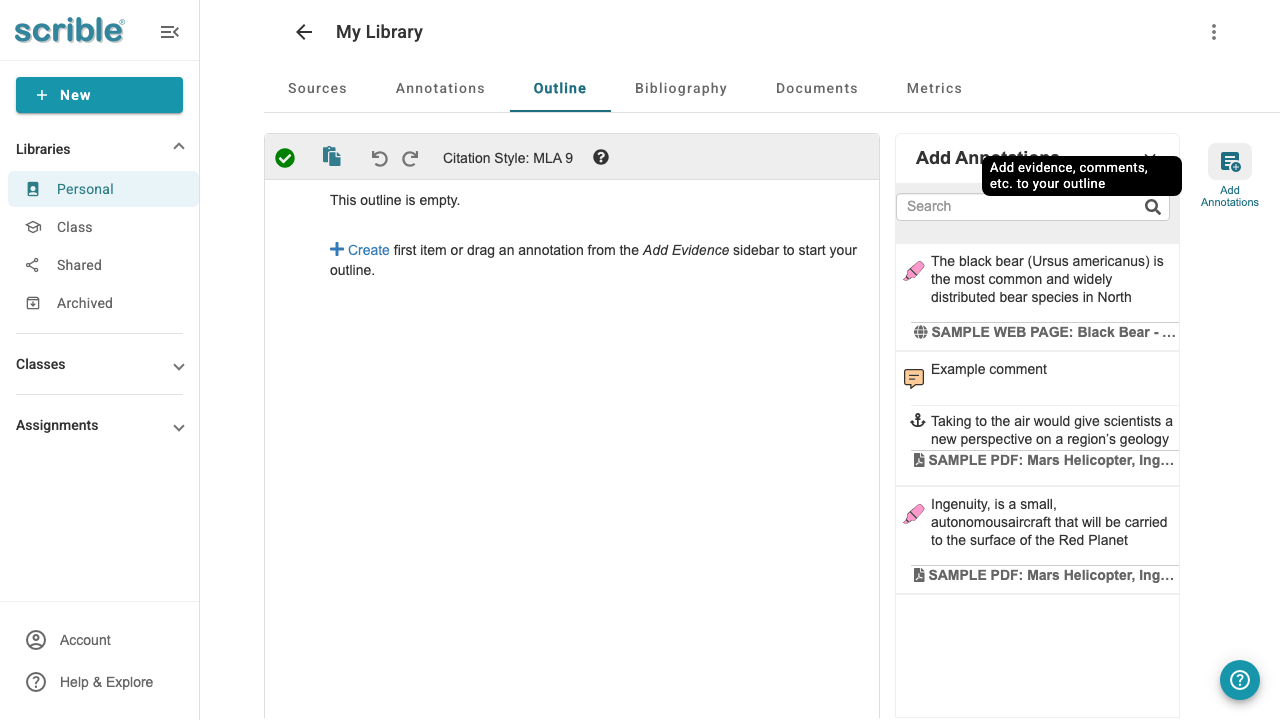
Once in the Outline tab, you'll see the Add Annotations button in the right sidebar. This panel (previously called "Add from Sources" in earlier versions) allows you to browse and drag annotations from your sources into your outline structure.
Creating Your Outline
You have two options for building your outline structure:
Drag and drop content from your annotations in the Add Annotations panel
Manually type headings, subheadings, and notes
As you work, you're laying down the skeleton of your argument or narrative, correlating key points and evidence from your source material.
📹 VIDEO PLACEHOLDER: Creating Your Outline
Video URL: https://www.youtube.com/embed/LjiadlXrr00
Video shows the outline creation workflow. Note: The interface shown reflects an earlier version of Scrible, but the functionality remains the same.
Exporting to Google Docs
Once your outline is complete, you can transfer it smoothly into Google Docs. Your ideas, research, and structure will transition without any hiccups, streamlining your writing journey.
Using Scrible Writer Integration
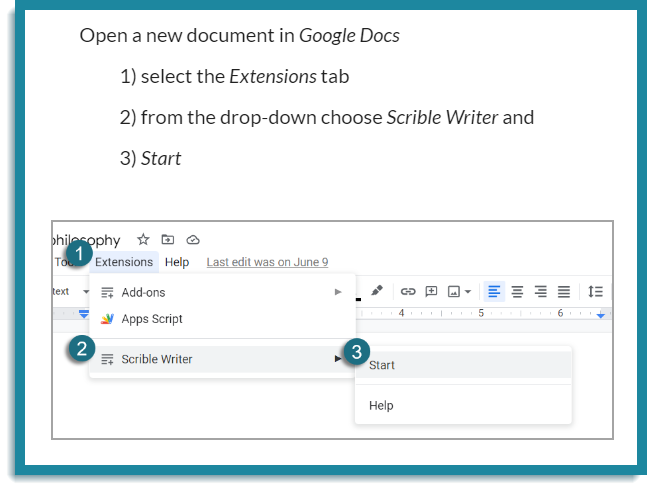
After structuring your outline in Scrible, you can quickly move it into your document using the Scrible Writer add-on for Google Docs or Microsoft Word.
To integrate your outline:
Complete your outline in Scrible
Open your paper in full-screen mode (Papers > Open or Create a paper)
Open the Scrible Writer add-on (Extensions > Scrible Writer > Start)
Transfer your outline directly to Google Docs
Begin writing - expand your points into a complete draft with all your research and ideas already in place
📹 VIDEO PLACEHOLDER: Scrible Writer Integration
Video URL: https://www.youtube.com/embed/X84C_OUV1MA
Video demonstrates the Scrible Writer add-on workflow. Note: The interface shown reflects an earlier version of Scrible, but the functionality remains the same.
Tips & Notes
The Outline feature is available only on Edu Pro plans
Works with both Google Docs and Microsoft Word