
Understanding Library Types
Scrible organizes sources into three types of libraries: Personal, Class, and Assignment. This guide explains each library type, who has access, and plan-specific limits.
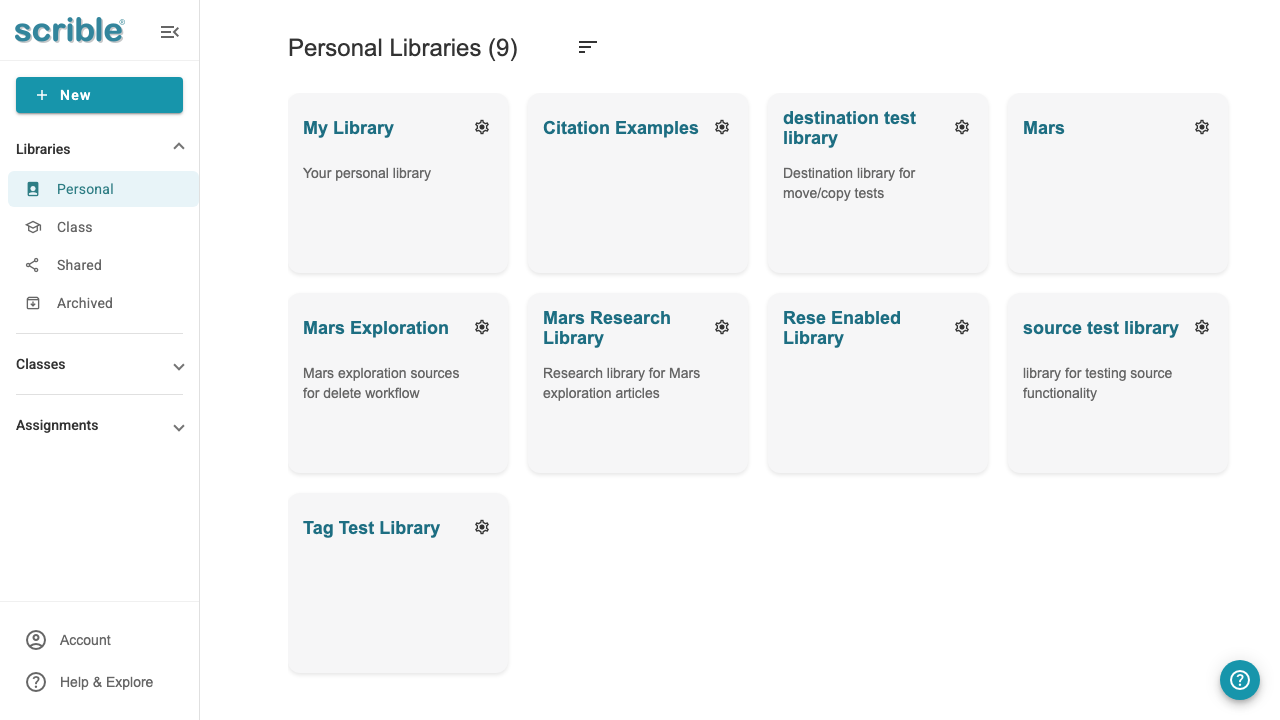
Personal Libraries
Personal libraries are private workspaces where you organize sources for individual use. Both teachers and students have personal libraries.
Access:
Teachers: Yes
Students: Yes
Plan Limits:
Free Plans: 1 personal library named "My Library"
Edu Pro Plans: Up to 10 personal libraries with a shared storage quota for PDF content
How to Access: Click the Libraries section in the left sidebar, then click Personal Libraries.
Common Uses:
Organizing research before sharing with a class
Storing sources for personal projects
Managing bookmarks and reading lists
Class Libraries
Class libraries are shared spaces where all students and instructors in a class can access, add, and annotate sources together.
Access:
Teachers: Yes (can create and manage)
Students: Yes (can view, add, and annotate sources)
Plan Limits:
Free Edu Plans: 1 class library per class (automatically created)
Edu Pro Plans: Can create additional libraries shared with classes
How to Access: Click the Libraries section in the left sidebar, then click Class Libraries to find libraries organized by class section. A default class library is automatically created when you create a class.
Sharing Additional Libraries with a Class (Edu Pro Only):
You can share a personal library with your class, making it accessible to all students and instructors in that class.
Create a new library (it will appear in Personal Libraries)
Open the library settings and select Collaborators
Select "Add classes as collaborators"
Choose which class sections to share the library with
The library will remain in your Personal Libraries section, but all members of the selected classes will have access to view, add, and annotate sources in the library.
Assignment Libraries
Assignment libraries are individual workspaces created automatically for each student when you distribute an assignment. Each student gets their own private library for completing the assignment.
Access:
Teachers: Yes (Teachers can view all student assignment libraries from within the assignment, though these libraries are not available in the library sidebar of a teacher account)
Students: Yes (can only access their own assignment libraries)
Plan Limits:
Free Plans: Not available
Edu Pro Plans: Included (automatically created for each student per assignment)
What's Inside: Each assignment library contains:
Pre-loaded sources selected by the teacher, including any existing annotations
Sources added by the student during assignment completion
Bibliography, Outline, and Documents tabs (when enabled for the assignment)
How Teachers Access Student Work:
Navigate to the Assignments tab
Select the assignment
Click the Student Progress tab
Click on a student's name below the assignment metrics
This opens that student's individual assignment library where you can view their sources, annotations, and work.
How Students Access Their Work: Click the Libraries section in the left sidebar and find your assignment in the dedicated Assignments section. From the assignment overview you can navigate to your assignment library.
Library Type Summary
Library Type |
Teachers |
Students |
Free Plans |
Edu Pro Plans |
|---|---|---|---|---|
Personal |
✓ |
✓ |
1 library |
Up to 10 libraries* |
Class |
✓ (manage) |
✓ (contribute) |
1 per class |
Multiple per class |
Assignment |
✓ (view all) |
✓ (own only) |
Not available |
Included |
*Edu Pro personal libraries share a storage quota for PDF content.
Tips
Start with personal libraries: Use personal libraries to organize and research sources before sharing them with your class.
Default class libraries: A class library is automatically created for each class, so you don't need to create one manually to start sharing sources with students.
Track student progress: Assignment libraries help you monitor individual student work and provide targeted feedback on their research and annotation skills.