
Submitting and Unsubmitting Assignments
Students submit assignments to indicate their work is complete, and teachers can track submission status across their class. This guide covers how to submit and unsubmit assignments, and how teachers can view submission history.
For Students: Submitting Assignments
Students can submit assignments from two locations: the Assignment Overview or directly from within the Assignment Library.
Submitting from Assignment Overview
Select the Assignments tab in the sidebar.
Click on the assignment you want to submit.
In the Status section, click the Submit button.
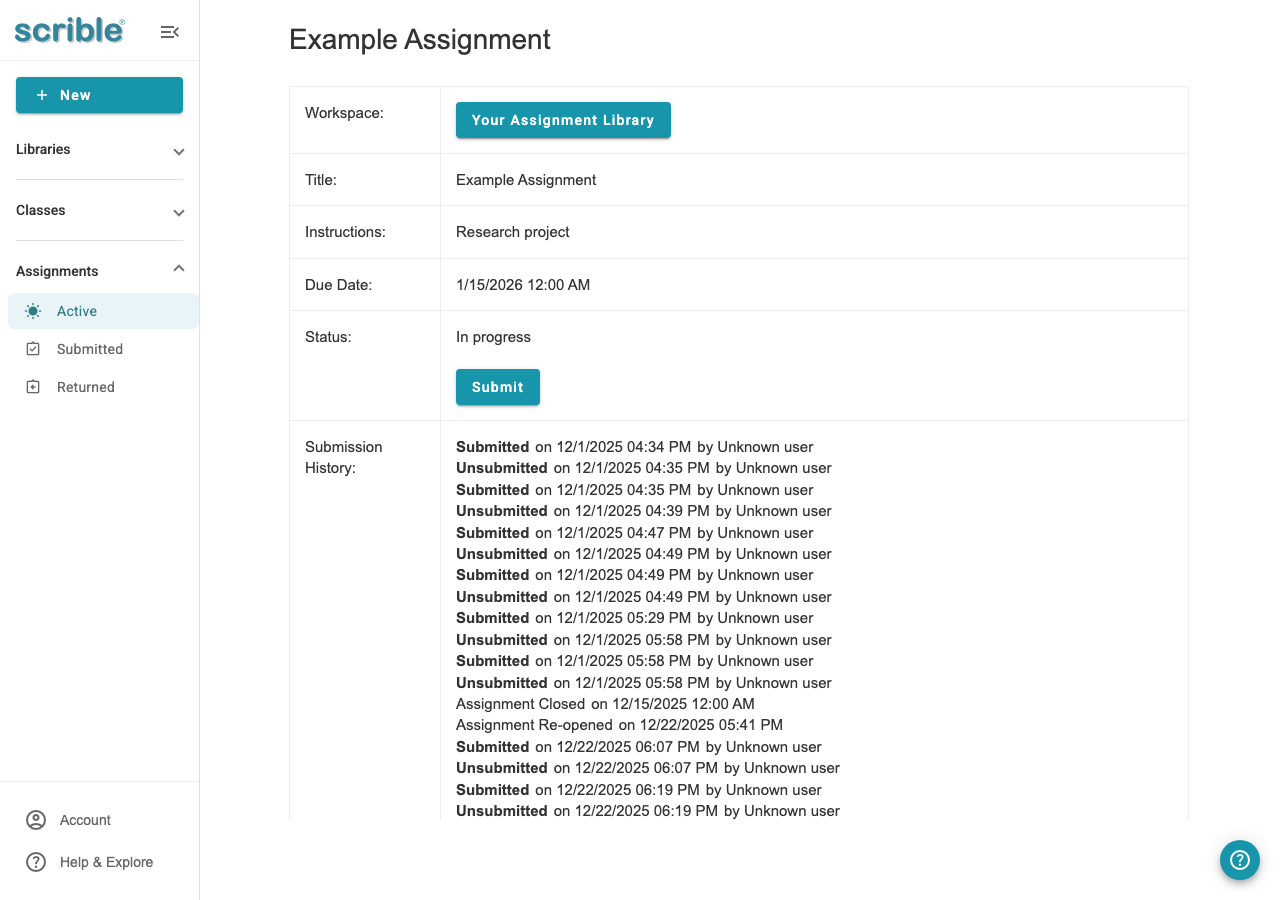
Note: The submit confirmation dialog is the same as shown in the screenshots in the Submitting from Assignment Library section below.
Submitting from Assignment Library
You can also submit directly from within your assignment library.
Open your assignment and go to Your Assignment Library.
Click the Submit button in the top right corner, which will first navigate you to your assignment overview and will then submit the assignment.
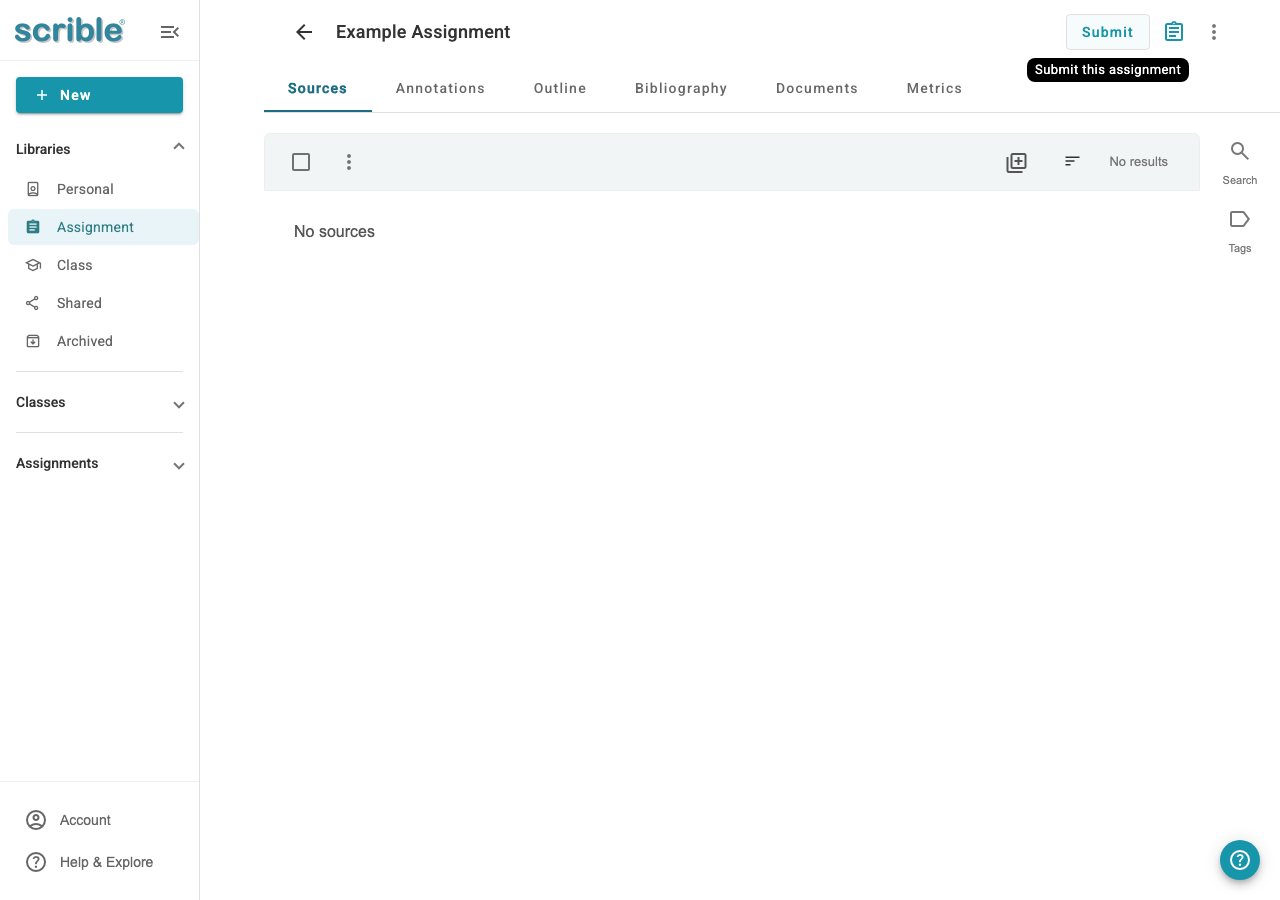
Note: If you have any unfulfilled requirements from the assignment, they will be flagged to you in the dialog before you confirm your submission.
Review the confirmation prompt and click Confirm to submit.
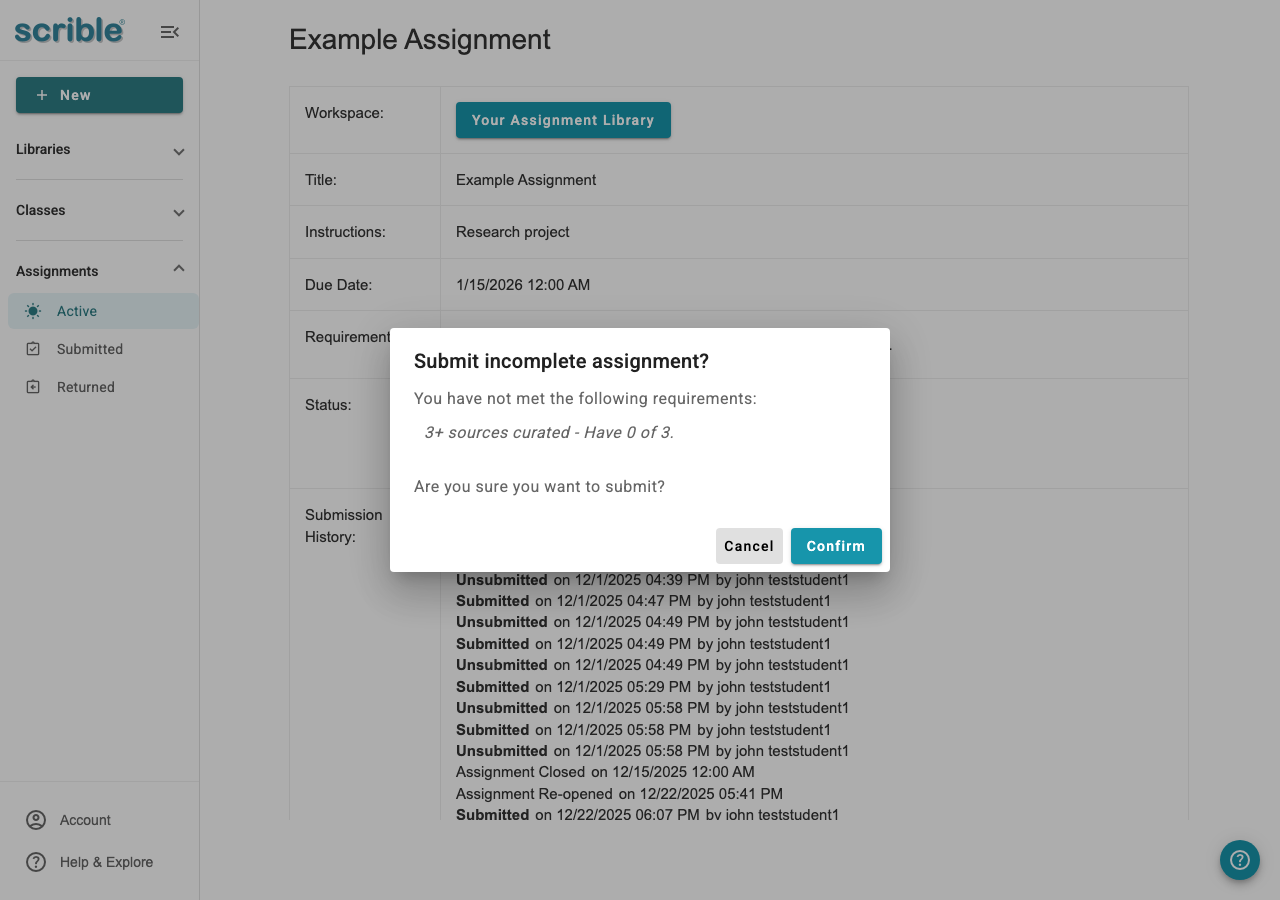
Once submitted, your assignment becomes read-only and you cannot make changes to any part of your work.
For Students: Unsubmitting Assignments
If you need to continue working on your assignment and your teacher has not graded it yet, you can unsubmit your work as long as it is before the assignment's due or close date.
To unsubmit:
Go to your Assignment Overview.
In the Status section, click the Unsubmit button.
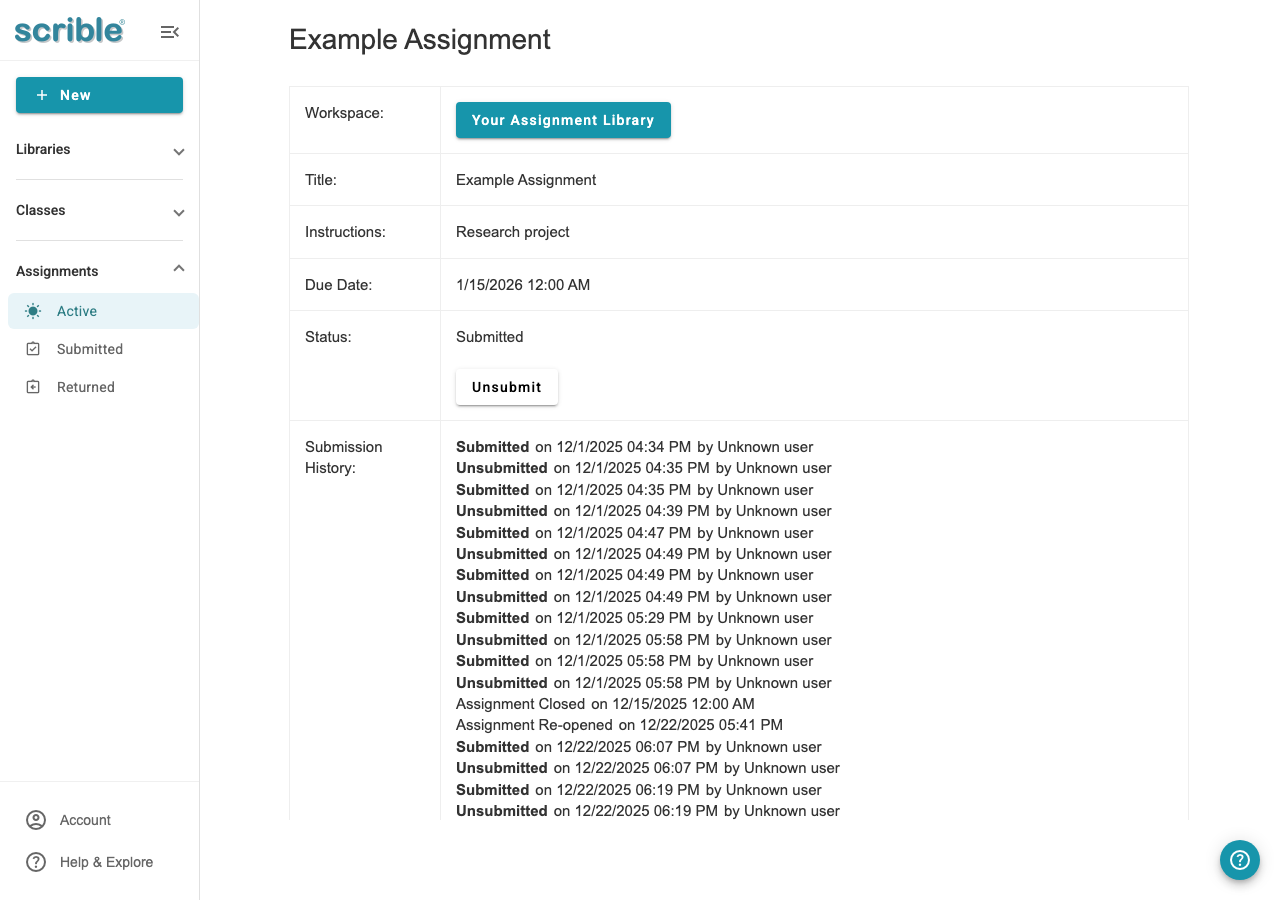
This reopens the assignment for editing. Remember to resubmit before the due date.
Submission History
Each assignment's Overview includes a Submission History section that displays timestamps for each submission and unsubmission, providing a clear record for you and your teacher.
For Teachers: Tracking Student Submissions
Teachers can monitor student work and submission status using the Student Progress, Class Progress, and Time On Task views.