
Monitoring Student Progress
The Student Progress page shows individual student work in an assignment, including assignment requirements and submission history. This guide explains how to view student-level analytics, access student libraries, and track individual progress through an assignment.
Viewing Student Progress Table
The Student Progress table provides an overview of each student's progress toward assignment requirements.
To access the Student Progress page:
Click Assignments in the sidebar
Click Active
Click on the assignment name
Click the Student Progress tab
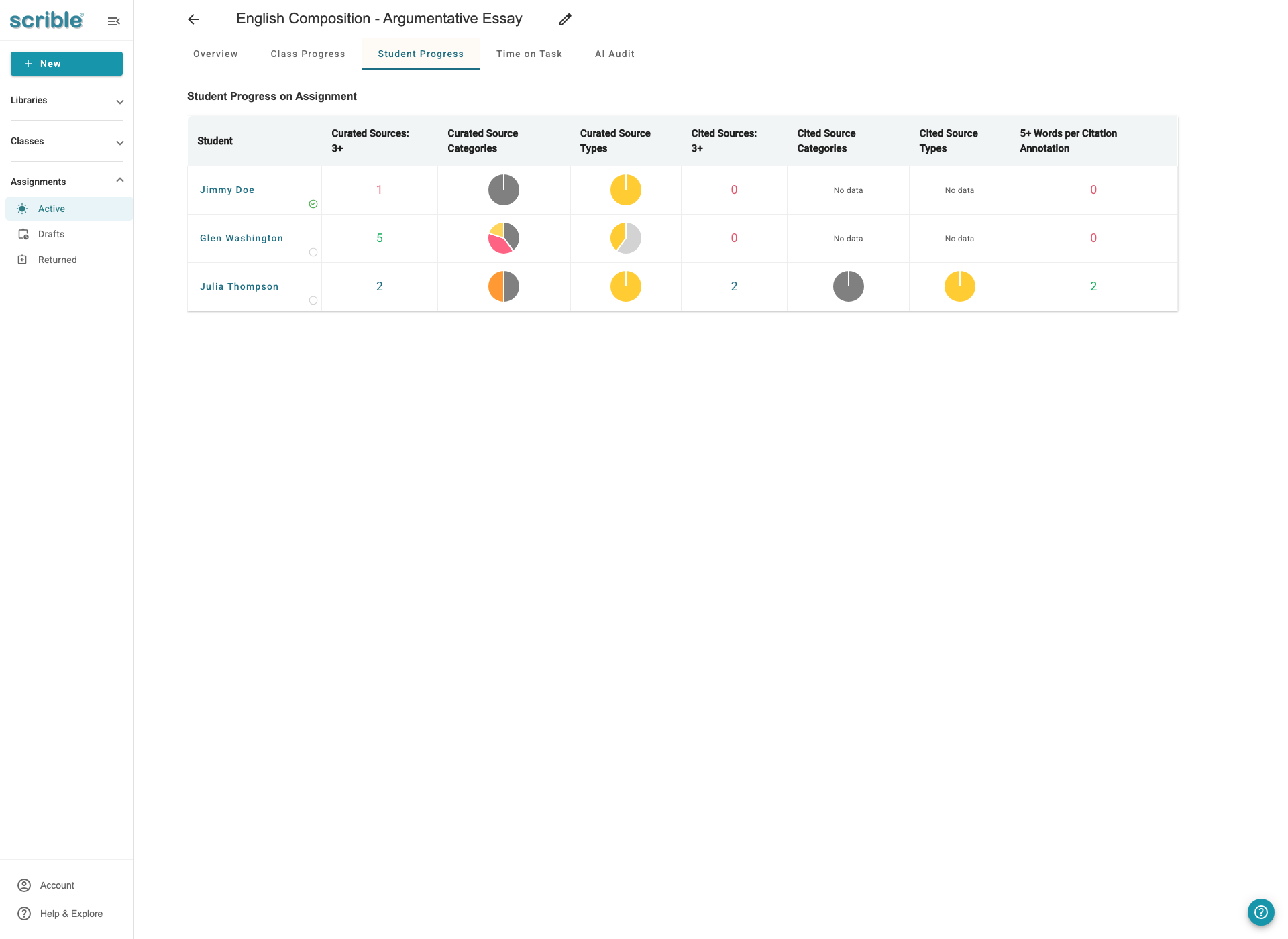
The table displays:
Student names - Clickable links to view individual student work
Requirement completion metrics - Numbers shown in green (requirement satisfied) or red (requirement not satisfied)
Pie charts - Visual representation of source categories and types for each student
The pie charts are clickable to expand and show detailed breakdowns when you hover over each slice.
The data reflects the requirements you configured when creating the assignment.
Reviewing Student Work with Assignment Library Review
Assignment Library Review provides a simplified view of student work with navigation to quickly review multiple students.
To access Assignment Library Review, click on a student name in the Student Progress table.
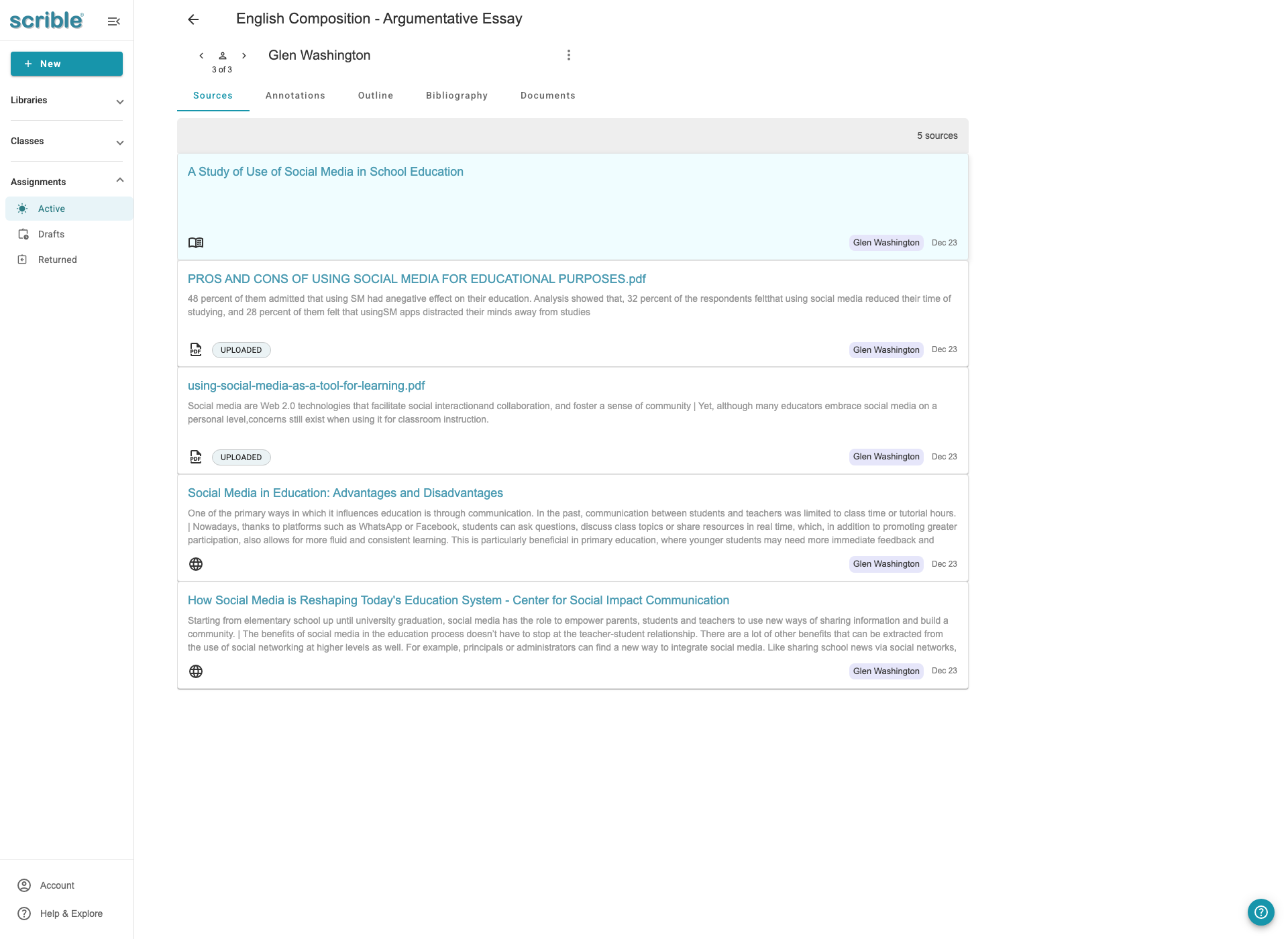
This view shows:
Carousel navigation - Arrows, person icon, and counter (e.g., "3 of 3") at the top left to navigate between students
Student name and assignment name - Displayed at the top
Tabs - Sources, Annotations, Outline, Bibliography, Documents (based on your assignment configuration)
Student's work - All sources, annotations, and other content the student has added
To navigate between students, you can:
Use the left and right arrows to move sequentially through students
Click the person icon to open a student list, then select any student directly
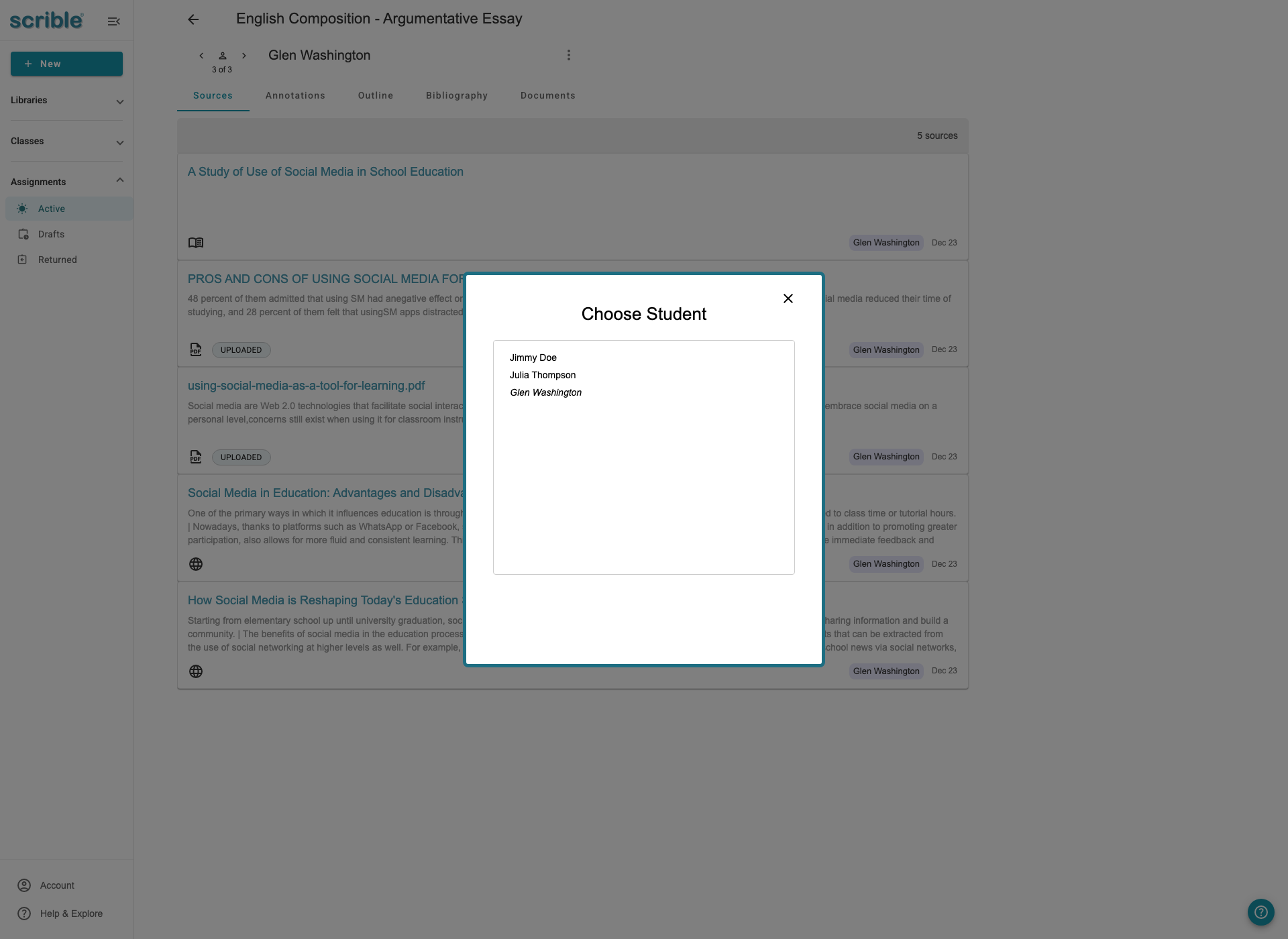
To return to the assignment overview, click the assignment name at the top of the page.
Viewing Submission History
The kebab menu (three dots) in Assignment Library Review provides access to additional viewing options.
To access the kebab menu, click the three dots icon in the top right while viewing a student's work.
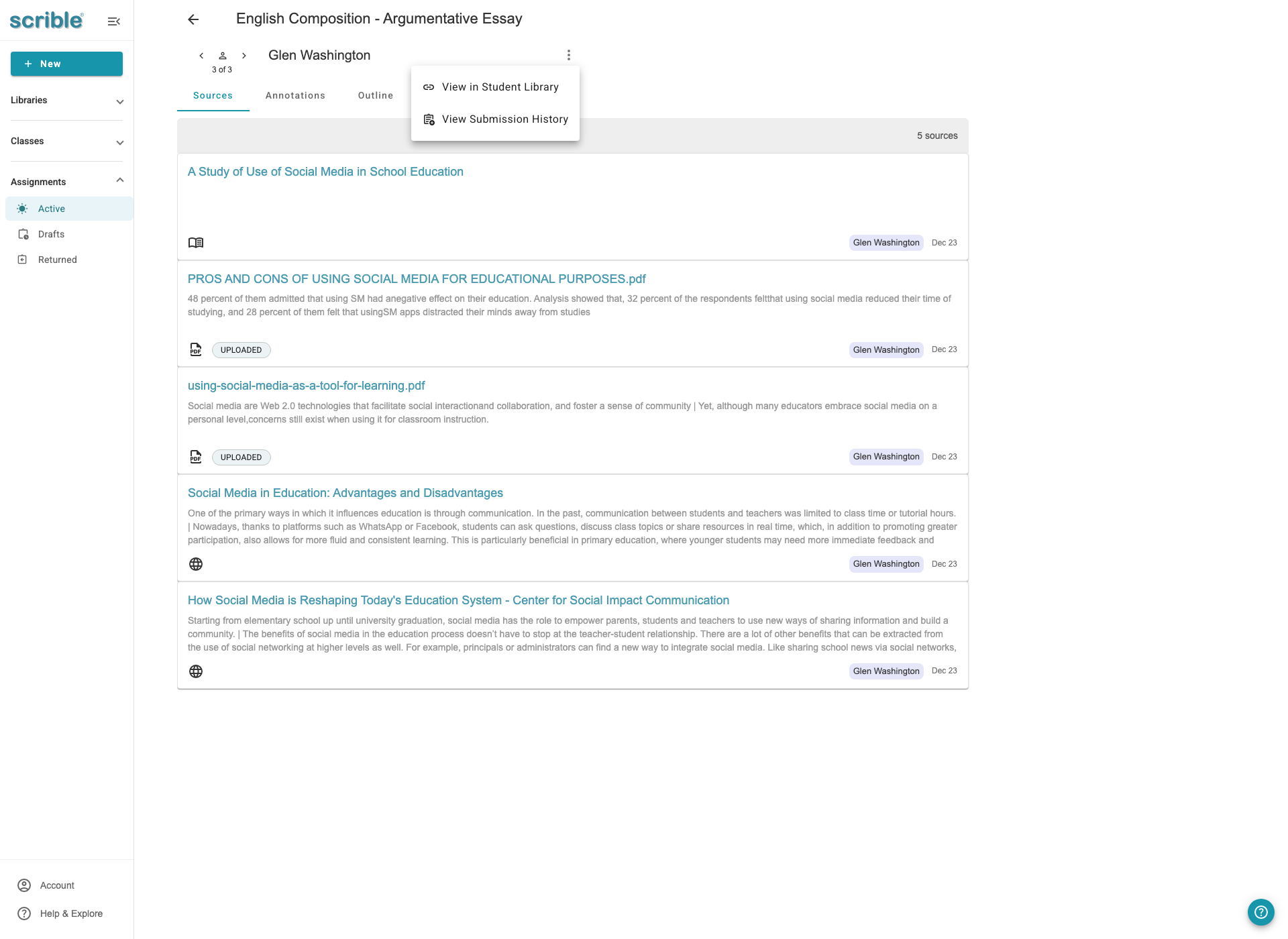
The menu offers two options:
View in Student Library - Opens the full student perspective (covered in the next section)
View Submission History - Shows a dialog listing all submission and unsubmission events with timestamps
The submission history helps you track when students submitted work and how many times they updated their submission.
Understanding Student Library Review Mode
Student Library Review mode shows you the student's library from their perspective, including all their data and the interface as they see it.
To enter Student Library Review mode:
Click the kebab menu (three dots) in Assignment Library Review
Click View in Student Library
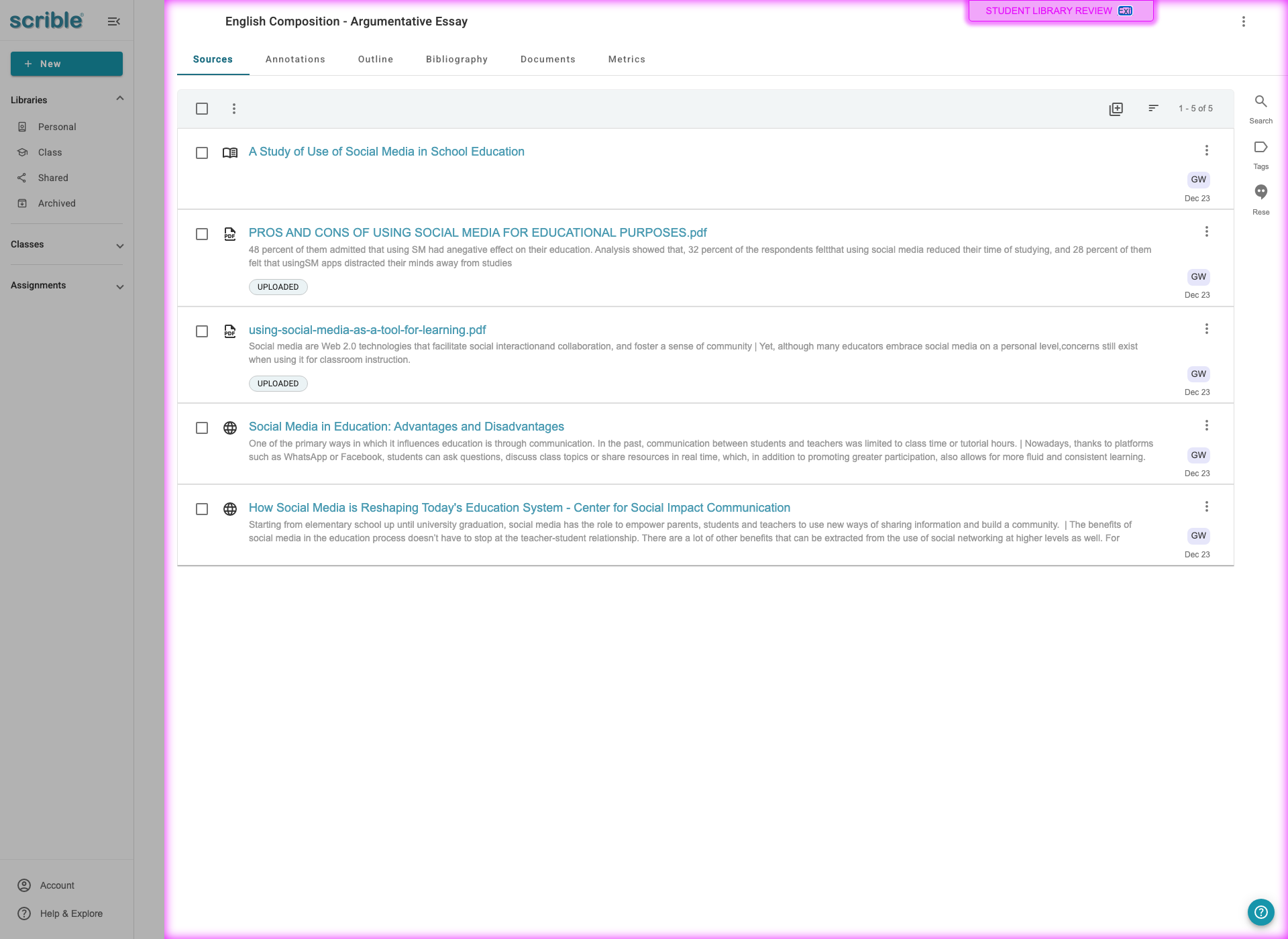
This mode displays:
Purple border indicator - A "STUDENT LIBRARY REVIEW" badge appears in the top right, showing you're in student perspective mode
Full student interface - The library appears exactly as the student sees it
All student data - Sources, annotations, outlines, and other work from the student's viewpoint
Interactive access - You can navigate through the student's library using their interface
This is similar to the student preview mode you can use before distributing an assignment, but it shows the student's actual work instead of an empty preview.
To exit Student Library Review mode, click the Exit link at the top of the page to return to Assignment Library Review.
Tips
No requirements configured: If you don't set assignment requirements, student progress data will be limited. Configure requirements when creating the assignment to enable detailed tracking.
Student navigation: Use the carousel navigation next to student name (arrows and counter) in Assignment Library Review to quickly review multiple students without returning to the main progress page.
Two viewing modes: Use Assignment Library Review for quick checks across students; use Student Library Review mode (purple border) to see the full student experience with their data.
Real-time updates: Student progress data updates as students work, so you can monitor engagement throughout the assignment period.