
Monitoring Class Progress
The Class Progress page shows assignment requirement completion rates and submission statuses across your entire class. This guide explains how to view class-level analytics and access individual student work.
Viewing Class-Level Progress
The Class Progress page displays graphs showing how many students have met each assignment requirement. To access this view, open an assignment from your Assignments tab and click the Class Progress tab.
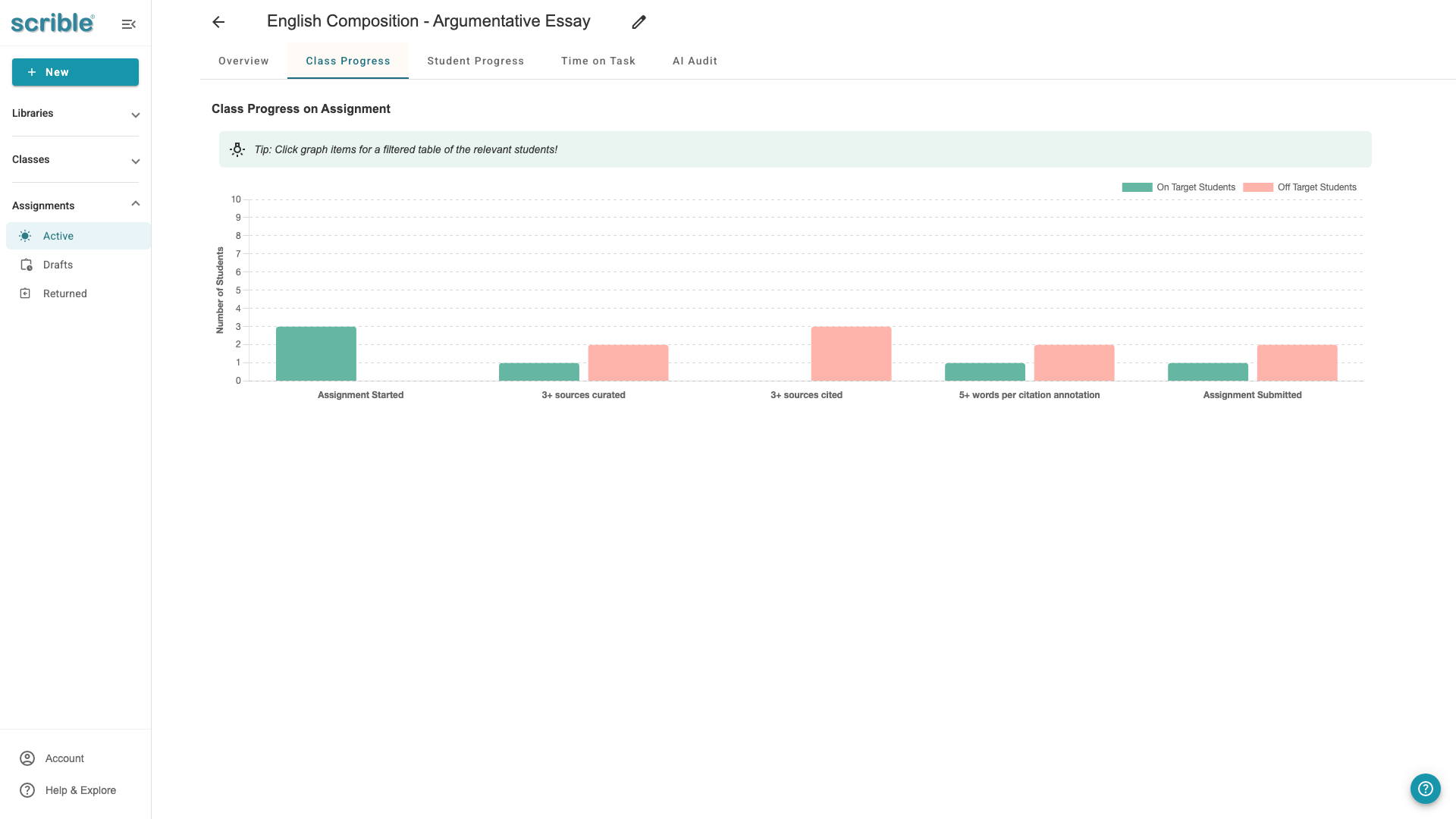
The page shows a graph for each requirement you configured when creating the assignment. Each graph displays two categories: students who have met the requirement (On Target) and students who haven't (Off Target).
Interactive Filtering
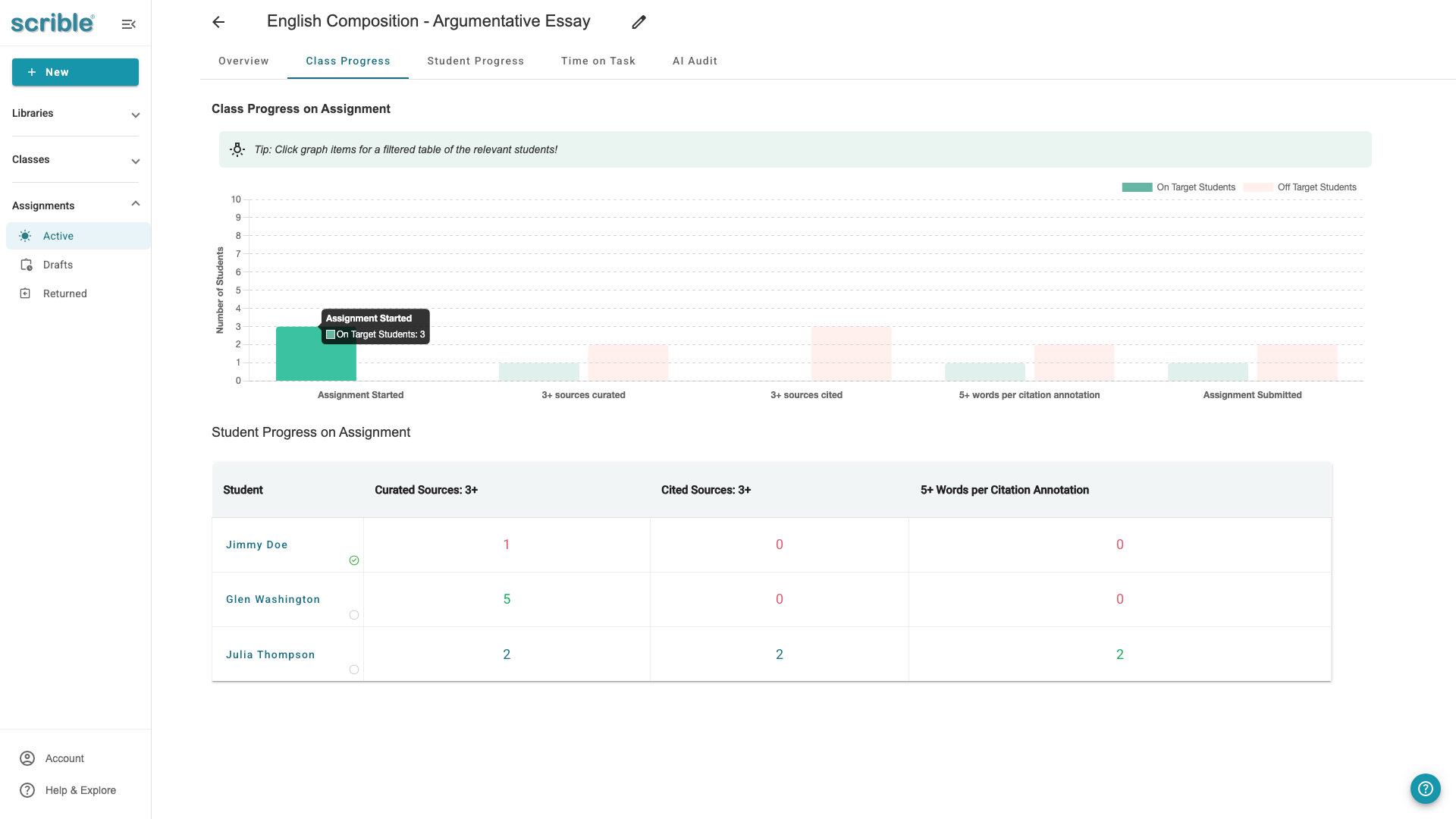
The graphs are interactive. Click any graph segment to filter the student table below and see only students in that category.
For example, clicking the "On Target" segment of the "Assignment Started" graph filters the table to show only students who have started the assignment:
Similarly, clicking the "Off Target" segment of a requirement graph filters the table to show students who haven't met that requirement:
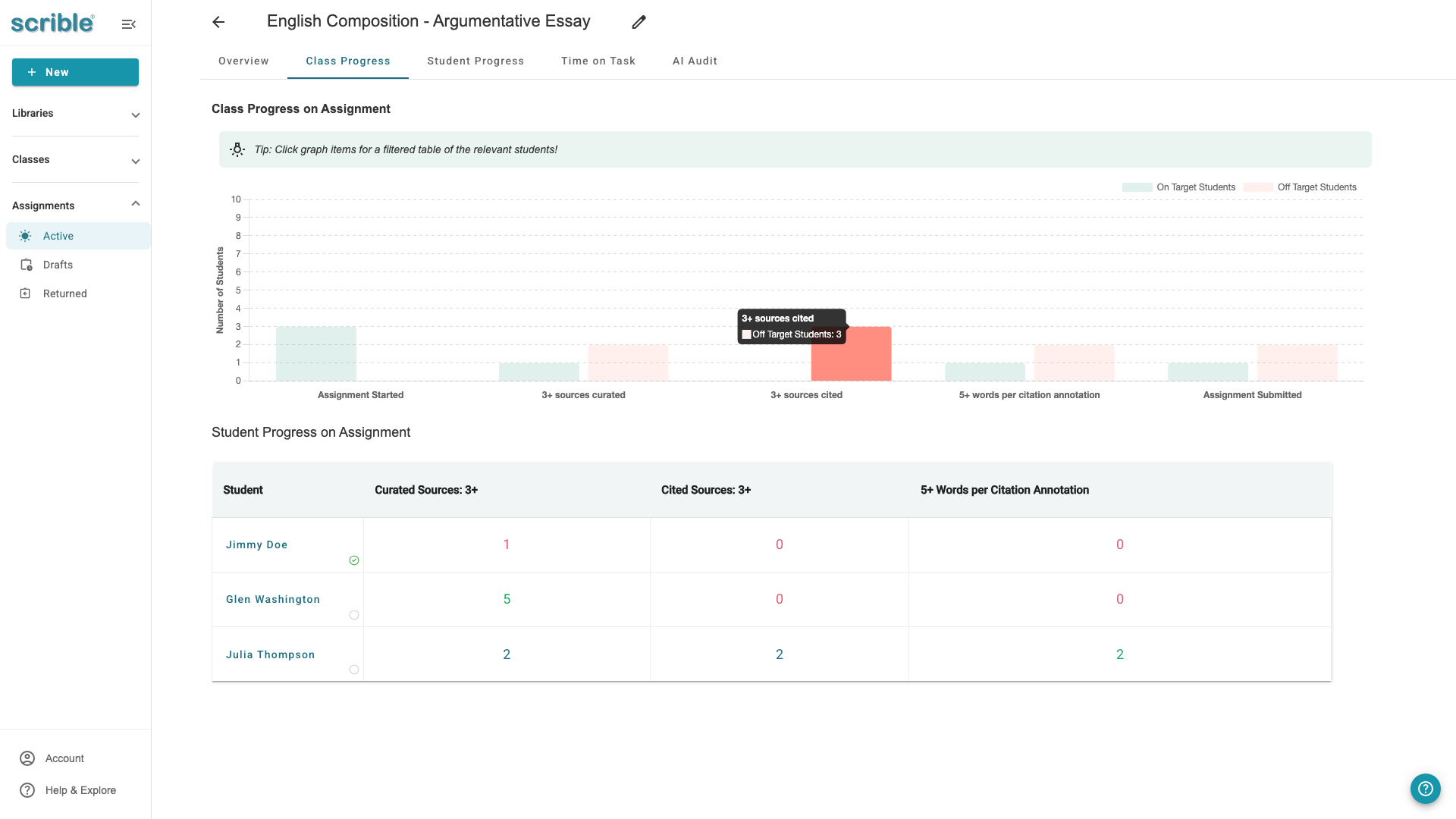
This filtering helps you quickly identify which students need support for specific requirements.
Accessing Individual Student Work
You can click on any student name in the filtered table to view their Assignment Library Review. This opens a detailed view of that individual student's progress, sources, and submitted work.
For more information about tracking individual student progress and navigating between students, see the Student Progress article.
Tips
No requirements configured: If you don't set assignment requirements, the Class Progress page won't display data. To enable progress tracking, create a requirement of 0 sources (essentially an empty requirement) when creating or editing the assignment.
Real-time updates: Class progress data updates as students work, so you can monitor engagement throughout the assignment period.