
Getting Started with Scrible Using Google Workspace
Scrible integrates with Google Workspace for Education to provide students with research and writing tools. This guide covers student sign-in, required tools installation, and class setup.
Student Sign-In
Students should sign in to Scrible using their school Google account. This ensures they access Scrible with their educational credentials rather than personal accounts.
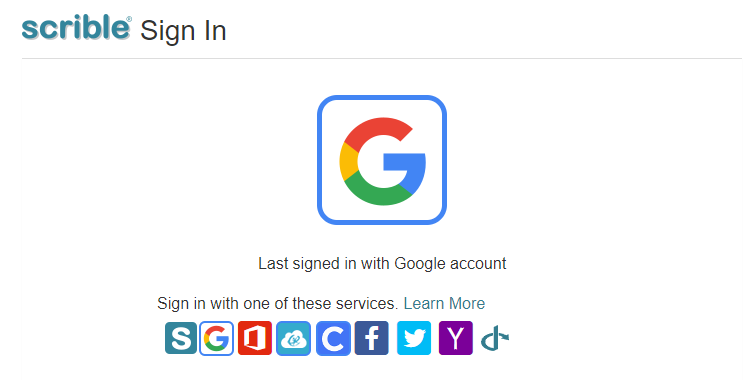
To sign in with Google:
Go to the Scrible sign-in page
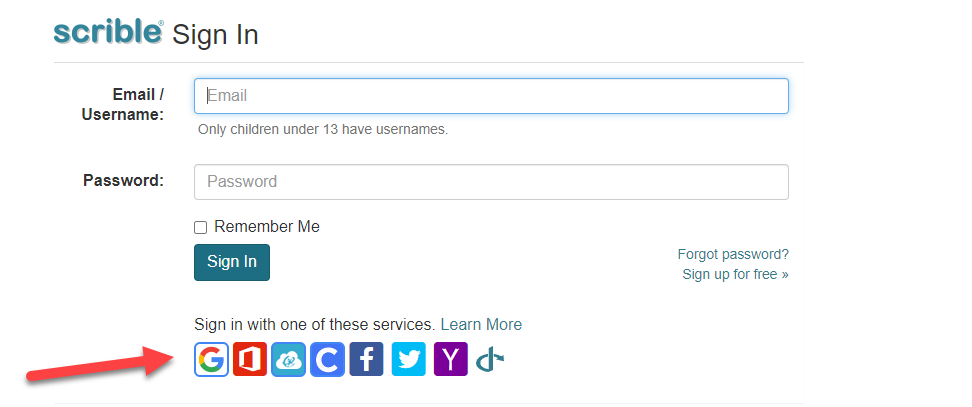
Click the Google icon in the SSO options row
Authorize Scrible to access your Google account (first time only)
Complete your account setup (first time only)
After the initial setup, students only need to click the Google button to sign in.
Installing Required Tools
Two tools are required for students to use Scrible effectively:
Scrible Chrome extension
Enables web research capture
Provides annotation tools
Imports citations automatically
For more information on how to pin the extension, see the Scrible Extension in Chrome article.
Scrible Writer Google Docs add-on
Manages bibliographies in Google Docs
Integrates research into documents
For more information, see the Managing Scrible Writer article.
Request your Google Workspace for Education administrator to add these tools to the allow list for all students. Administrators can push these tools to students proactively, saving classroom setup time.
Creating Classes
Teachers can create classes in Scrible through:
Manual class creation - Create classes individually
Google Classroom synchronization - Sync rosters from Google Classroom
Students automatically receive Edu Pro upgrades when they enroll in a class.
For detailed instructions on creating classes and syncing rosters, see the Creating Classes article.