
How do I share a Scrible Library?

If you're on a Scrible Edu Pro plan, you can share your libraries with others to collaborate. Sharing a library is easy, and you can do it by following a few simple steps.
Sharing a Library
To start, you'll need to locate the library you want to share. Once you've found it, click the kebab menu to the far right of the library name, then navigate to Collaborator Settings.
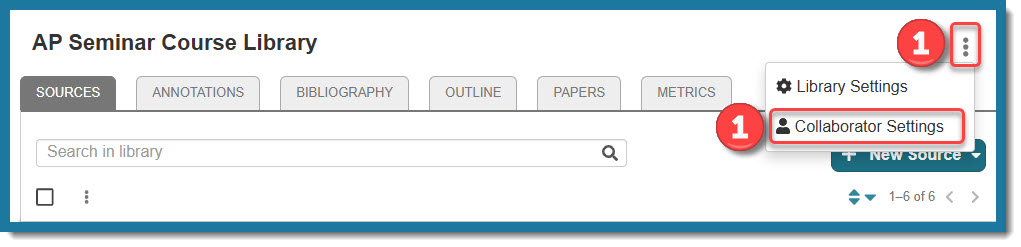
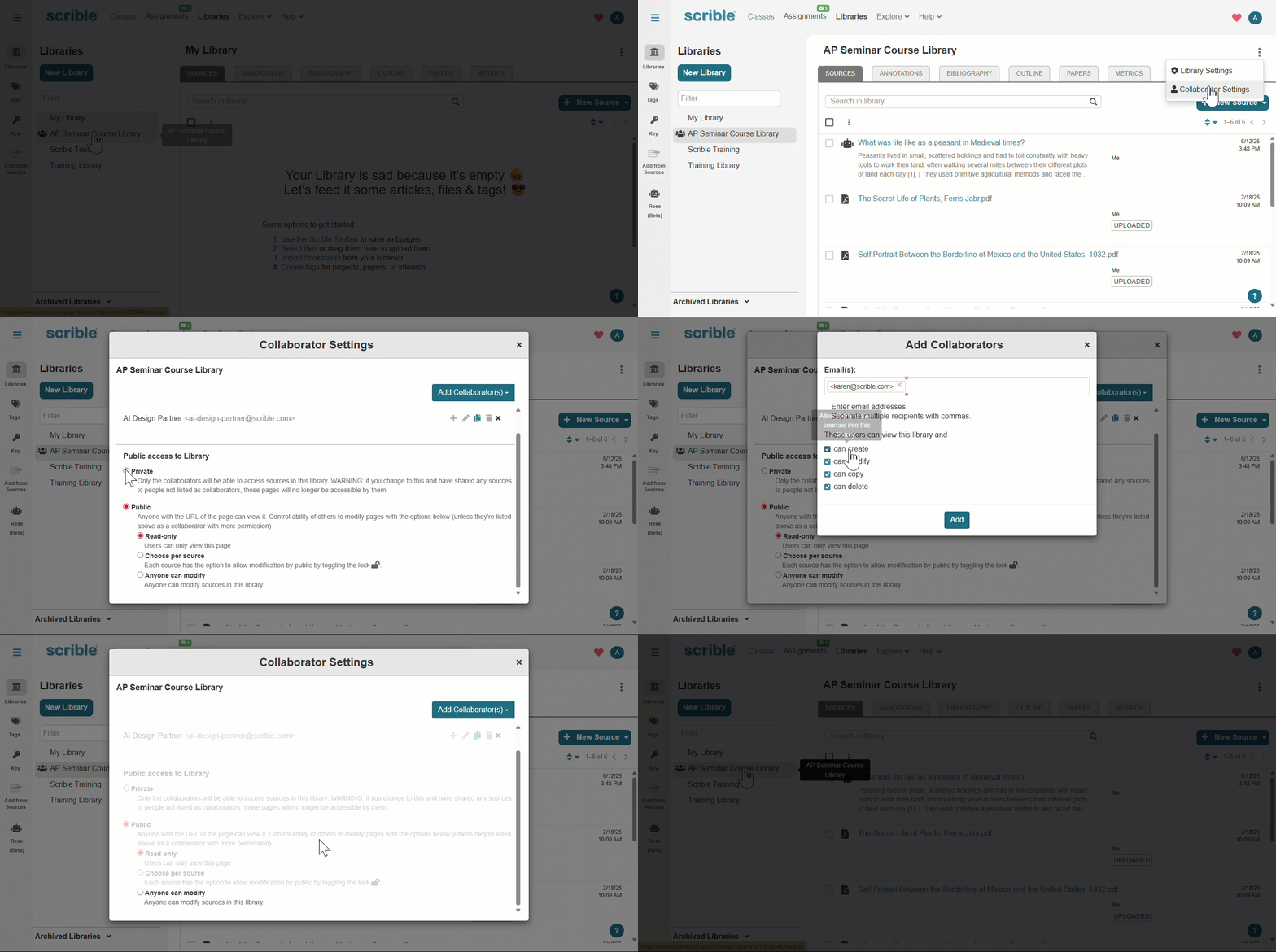
Now in the Collaborators Settings Window, you can add inividual collaborators by email address for anyone with whom you wish to share the library. You can easily add multiple people to your library by entering email addresses separated by commas. Additionally, this is where you can modify public access to the library. Play the GIF below to see these steps in action.
Setting Collaborator Permissions
You get to set the permissions for the libraries you share! You can allow full access to the library or limit what collaborators can do in the library. By doing this, you can ensure that your collaborators can only work with the information in the library in the ways you allow. You can set permissions by individual collaborator so that each collaborator has different levels of access. Here's what each level means:
READ ONLY: Collaborators can only view library content.
CREATE: Collaborators can save new sources into the library.
MODIFY: Collaborators can add, edit and remove annotations to sources in the library.
COPY: Collaborators can copy sources from this library to another library.
DELETE: Collaborators can remove sources from this library.
Making a Library Public
You can also set the overall access to the library as private or public, with the public option having a set of sub-options, as shown here:

"Public" really refers to the sources in the library vs. the library itself. Choosing Public does not make the library discoverable by others. Here's a little more info to clarify what you see above:
PRIVATE: Only users invited as collaborators can view sources in the library. So if the URL is shared with someone else, they won't be able to see it until they're added as a collaborator.
PUBLIC/READ-ONLY: Anyone with the URL for a source in the library can view that source.
-
PUBLIC/CHOOSE PER SOURCE: Each source in the library displays a locked (
) or unlocked (
) icon at the far right. This indicates whether the source can be modified by someone who has a URL for the source. Clicking the icon will toggle the setting.
PUBLIC/ANYONE CAN MODIFY: Anyone with the URL for a source in the library can modify annotations on that source.


Modifying/Revoking Access
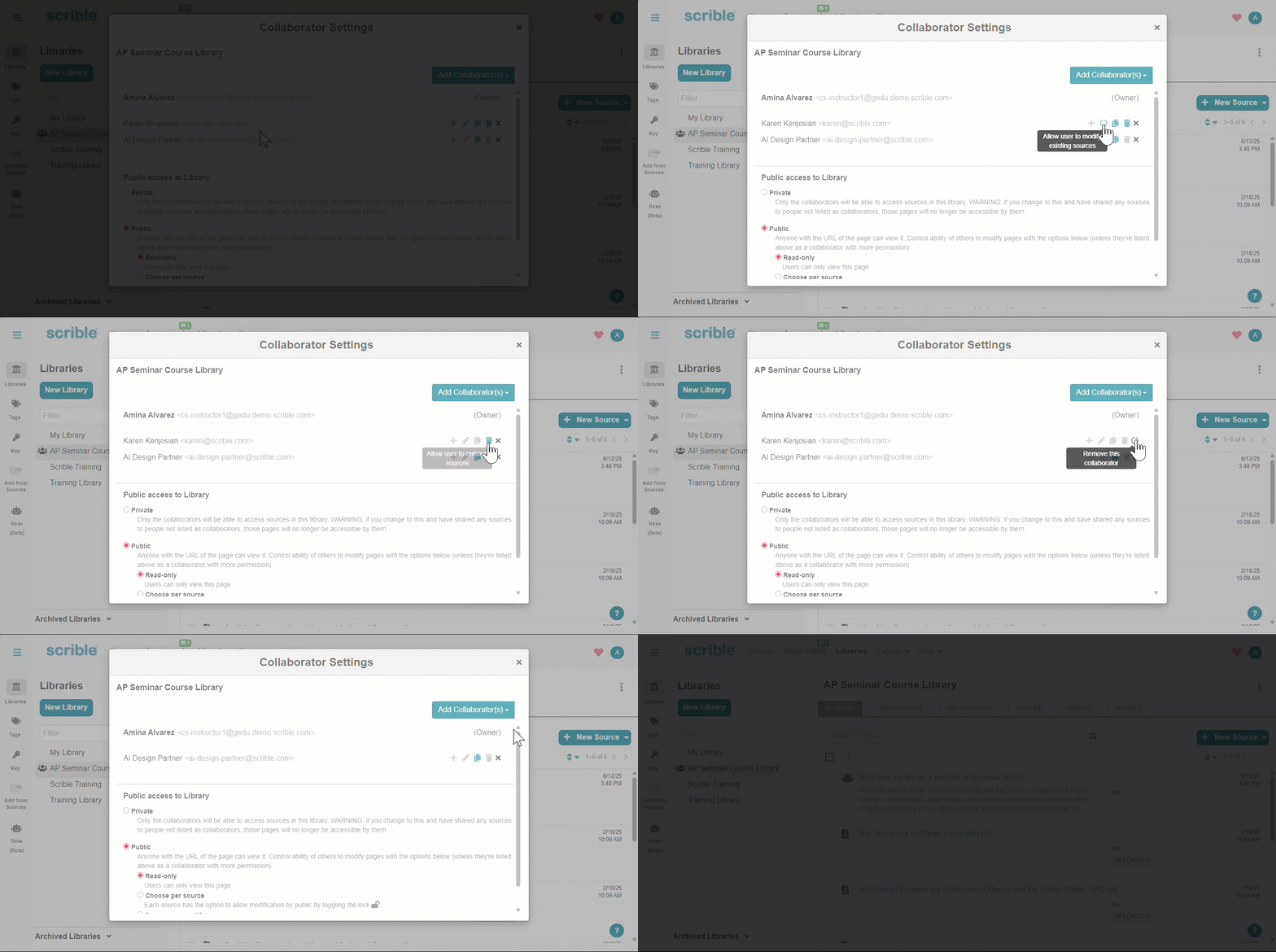
It's just as easy to adjust the settings on your shared library. You can customize the level of access anyone has to a shared library. If you no longer wish to share the library, you can easily revoke access to one, some, or all by clicking the X next to their email address(es).
Sharing a library can be a game-changer for collaborative work and group projects. Let us know if you have any questions about the process. Please don't hesitate to reach out if you need additional guidance on sharing your Scrible libraries. We're always happy to help you in any way we can!