
Adding and Managing Comments on Sources in a Library
Comments let you add notes and observations directly to specific text within your sources. This guide shows you how to add, reply to, edit, and delete comments on sources in your library.
: The images in this article show an earlier version of Scrible. The comment functionality remains the same.
Adding a Comment
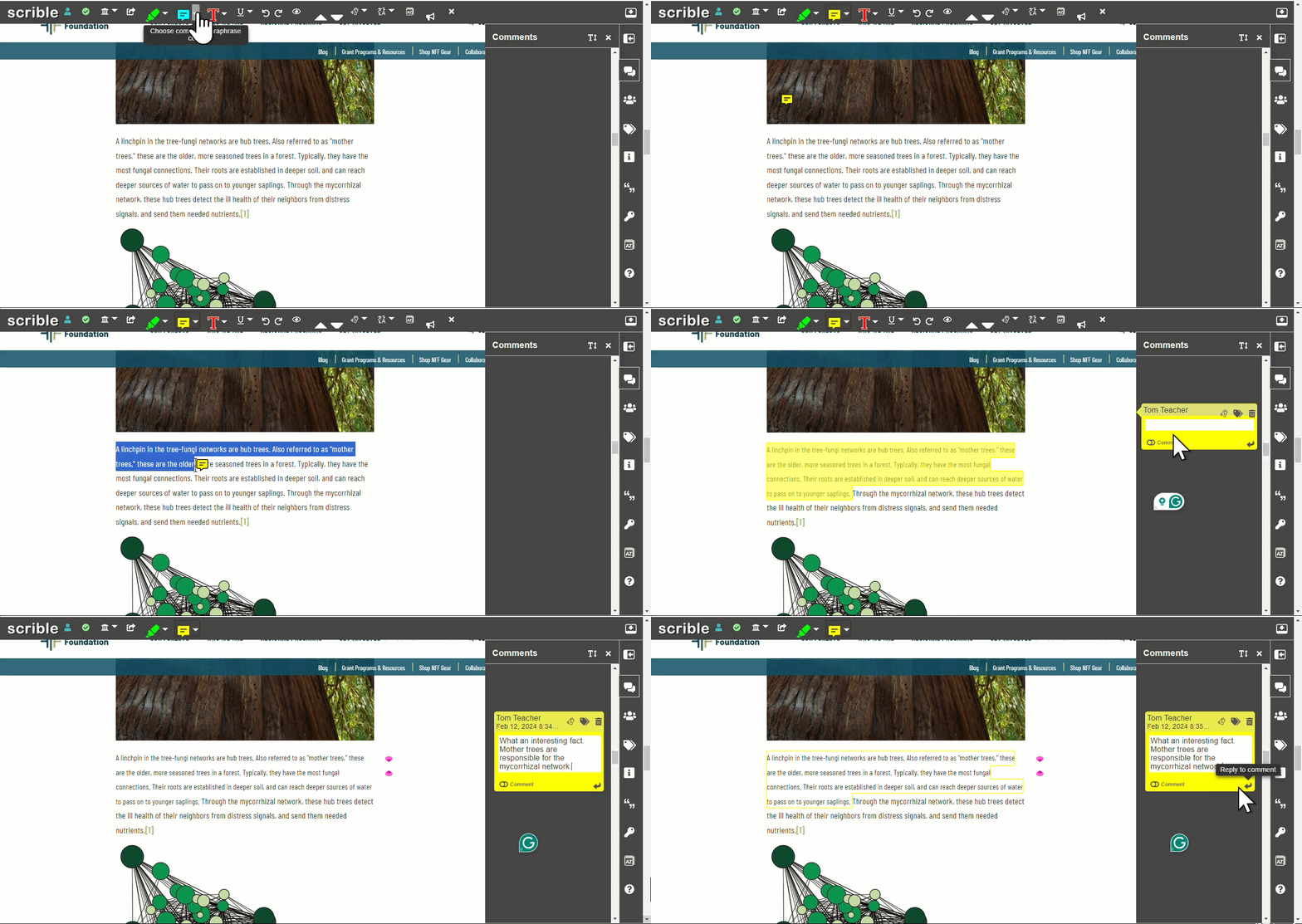
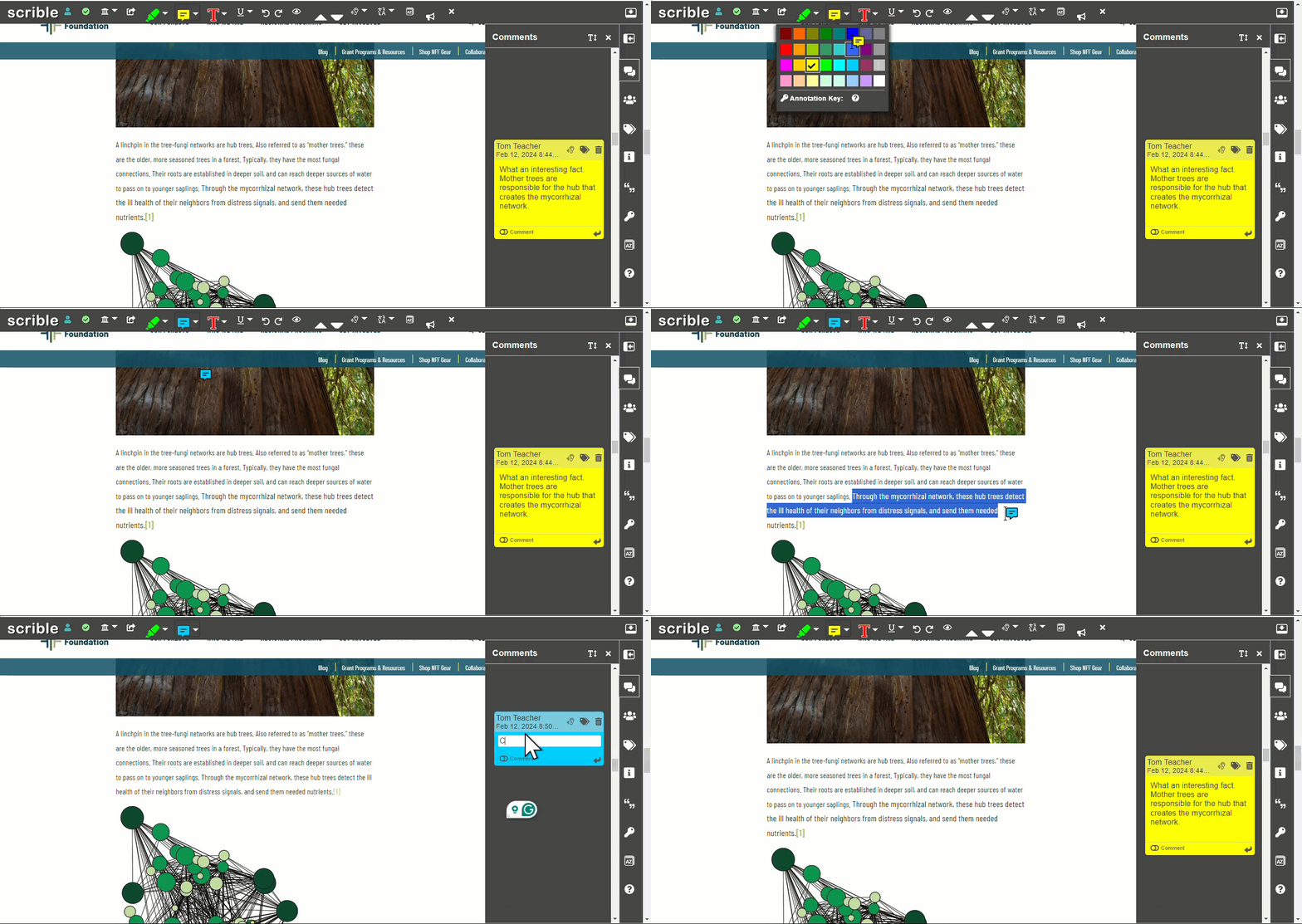
Click the comment icon in the toolbar.
Select the text you want to comment on, or click with the comment cursor to highlight the text.
A comment box opens in the right sidebar, anchored to your highlighted text.
Type your comment in the text box. Press Enter to move to the next line.
Click outside the box or press Escape to save.
Replying to a Comment
Click the reply arrow in the bottom right corner of a comment to add a reply. This keeps the conversation organized and connected to the specific text.
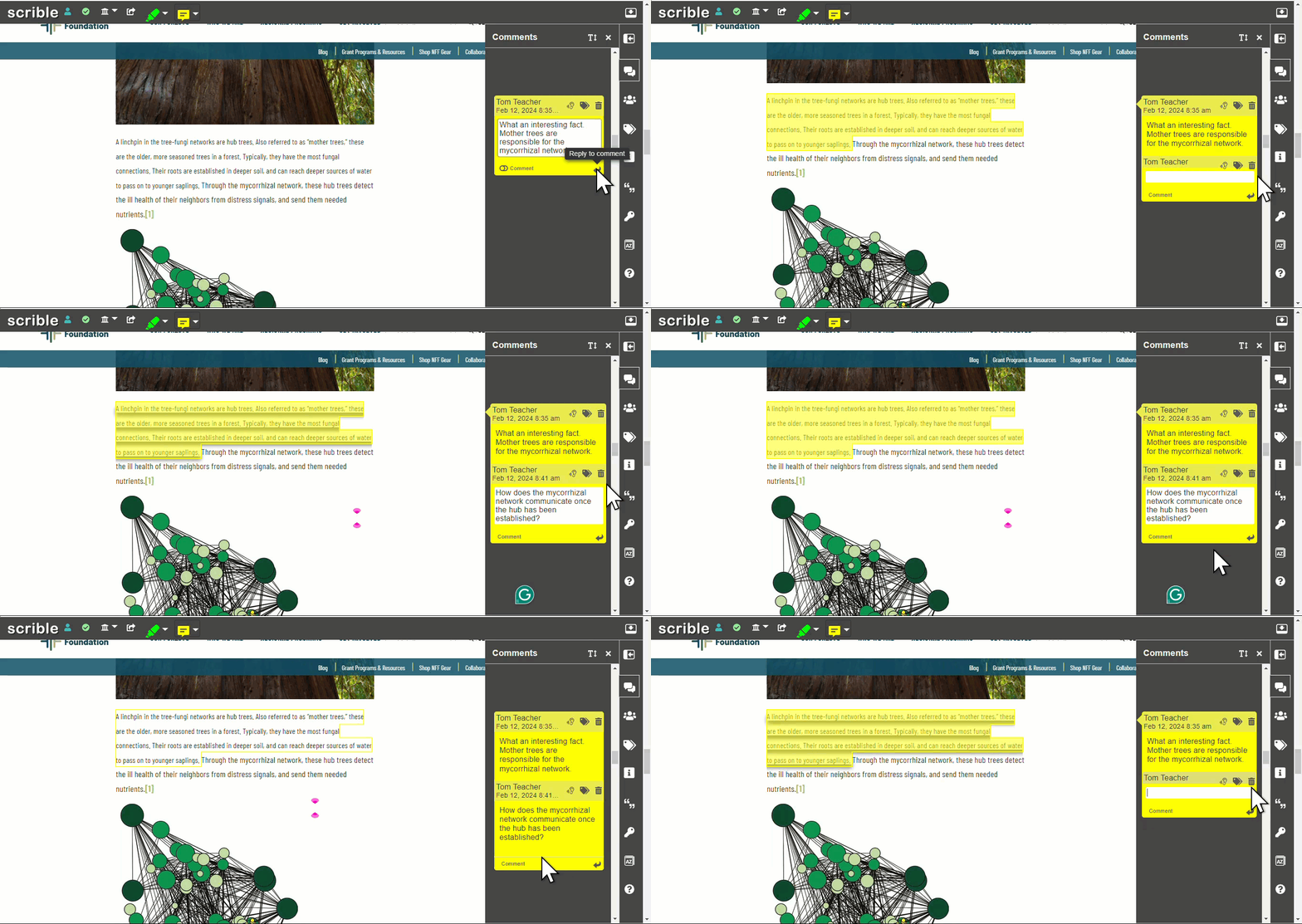
Editing and Deleting Comments
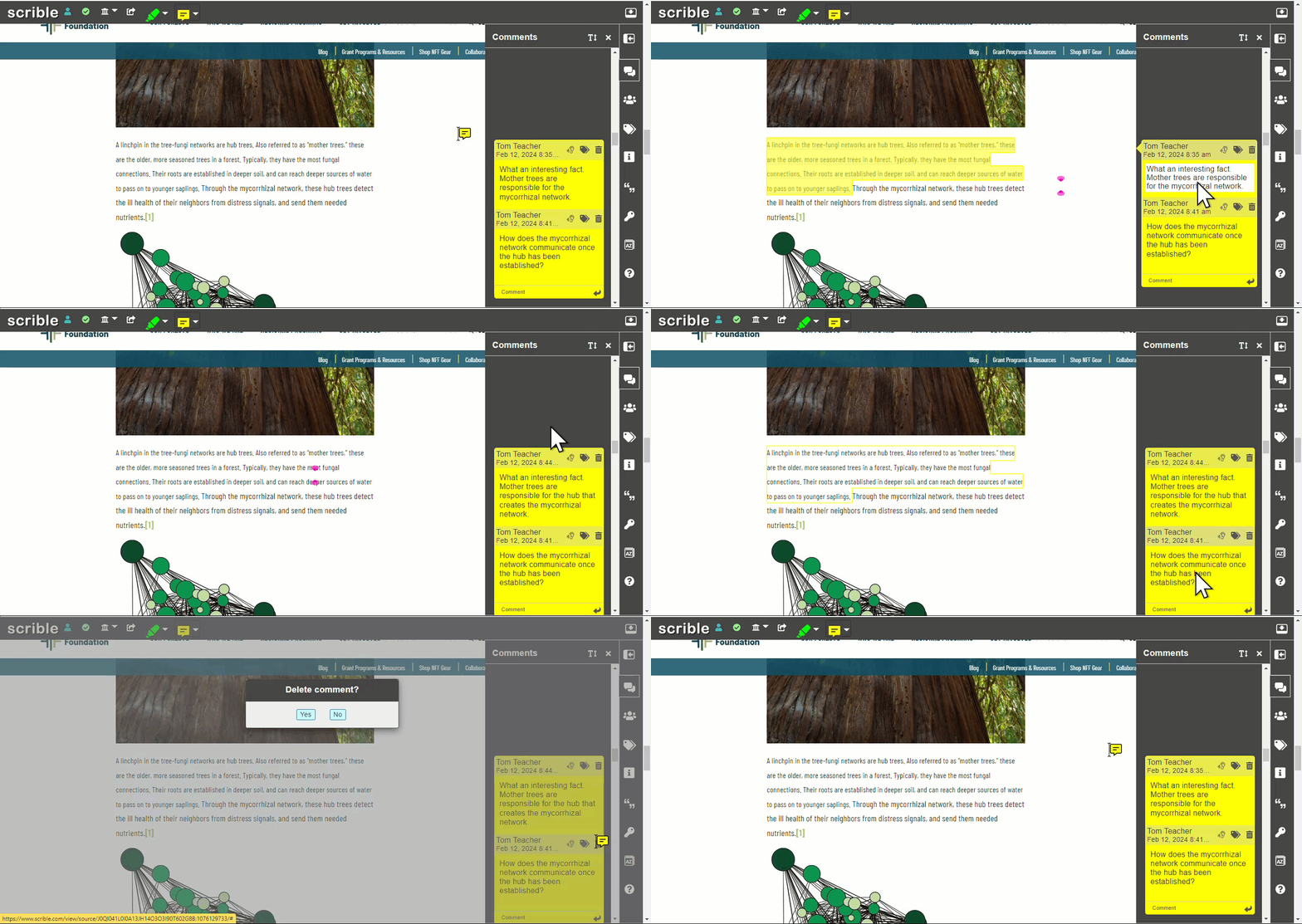
To edit a comment, click the comments icon in the sidebar, then click within the text box of the comment you want to edit.
To delete a comment, click the trash can icon in the upper right corner of the comment note. You can only delete comments you created.
Opening and Closing the Comments Sidebar
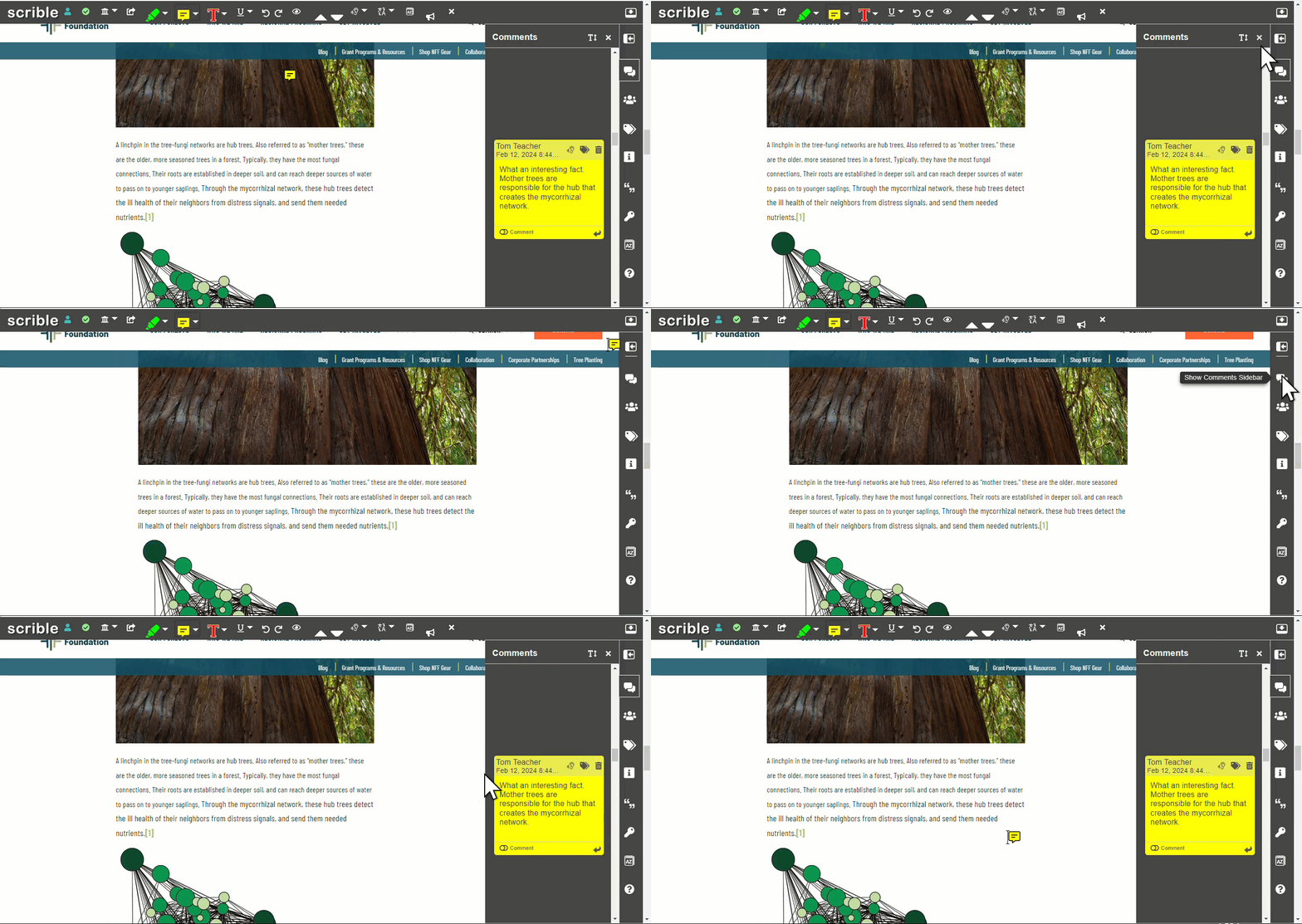
To close the Comments Sidebar, click the X in the top right corner of the sidebar.
To reopen it, click the comments icon in the toolbar.
Changing Comment Color
Click the arrow next to the comment icon in the toolbar to select a different color for new comment notes.
Tips
Context menu: Click within text that has a comment attached to open a context menu with quick access to comment functions. Hover over each icon to see descriptions.

Auto-save: Comments and edits save automatically. They remain visible whenever you open the Comments Sidebar unless the comment or source is deleted.