
Understanding Assignment Stages
Assignments in Scrible progress through four distinct stages that control who can see and edit the assignment. Each stage defines specific capabilities for teachers and students as the assignment moves from creation to completion.
Assignment Stages for Educators
Draft
When you (a teacher) create a new assignment or duplicate an existing one, it begins in Draft stage. Only you and co-teachers can see the assignment at this stage, in Draft under the Assignments section in the left sidebar. You can configure all settings, attach source materials, and make changes freely before students gain access.
Assigned
Click the Assign button to move your assignment to the Assigned stage, and the assignment will now appear in the Active Assignments section. Students can now see the assignment in Active under their Assignments section in the left sidebar, and begin working on it. You can still add new sources to the assignment, but you cannot remove sources you've already attached. The distribution method also becomes locked and cannot be changed.
Closed
When an assignment reaches the Closed stage, which happens because the close date has passed, students cannot submit new work. Students can still view the assignment and any feedback you've provided.
Closed assignments appear for teachers under the Active Assignments section. For students, assignments appear under the Submitted section either when a student has submitted the assignment or the close date has passed.
Completed
When you want to return a closed assignment to your students, click on the Return action in the assignment kebab menu. This will change the assignment to the completed stage, and students may again make changes within the assignment. Completed assignments appear to teachers in the Returned Assignments section and to students in the Returned section.
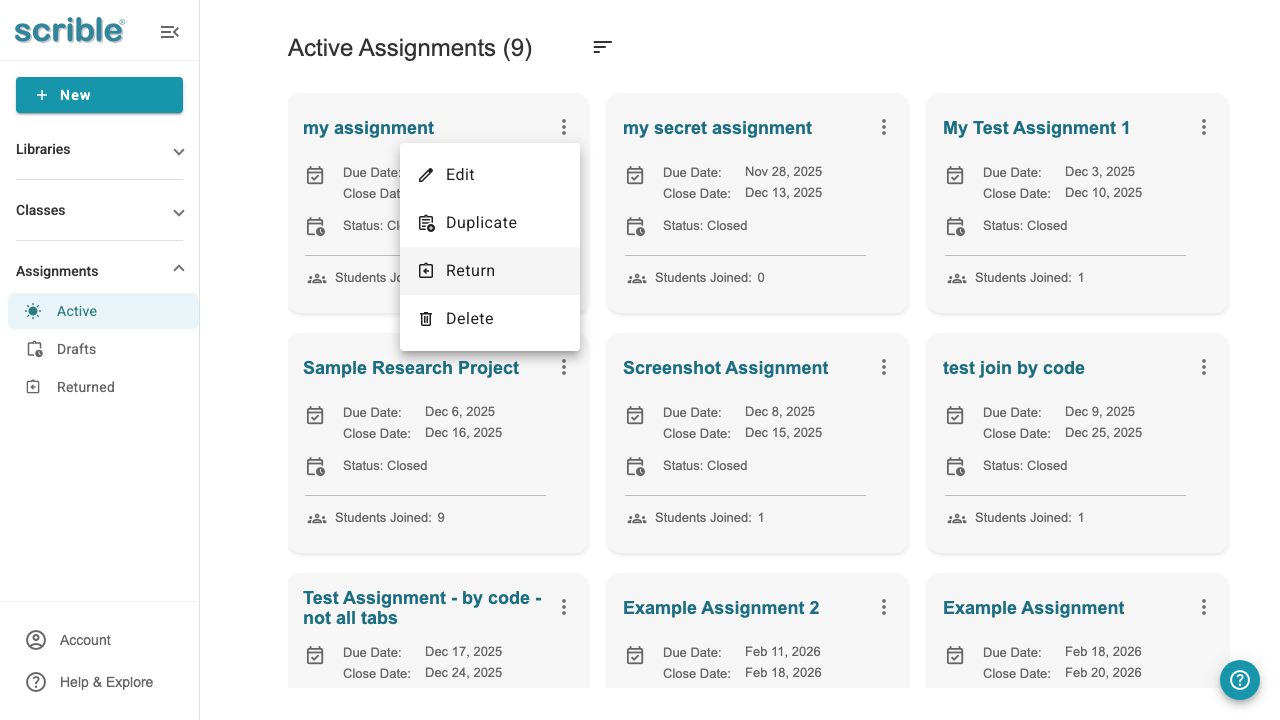
The Completed stage marks the end of the assignment workflow. All grading and feedback have been finalized, and the assignment is archived.
How Assignments Are Listed for Educators
On the Assignments page, educators will see three tabs that help organize their workflow:
Active – Includes assignments in the Assigned or Closed stage
Draft – For assignments still being configured
Completed – For assignments that have been graded and returned
How Assignments Are Listed for Students
Students will see a slightly different layout:
Active – Assignments in the Assigned stage that haven't been submitted
Submitted – Includes assignments that have been submitted or are now Closed
Returned – Assignments that have been graded and moved to the Completed stage
Tips
Moving between stages: You control when assignments transition from Draft to Assigned by clicking the Assign button. The system automatically moves assignments to Closed and Completed stages based on your configured deadlines and grading completion.
Planning your workflow: Use the Draft stage to set up everything before students see the assignment. Once you assign it, you can add materials but cannot remove them, so review your sources carefully before assigning.
After the close date: Students retain access to view closed and completed assignments, allowing them to reference your feedback and their work even after the assignment ends.