
Tagging and Searching
Tags help you organize sources and annotations into meaningful categories, making it easy to retrieve specific information when you need it. This guide covers how to add tags to sources and annotations in your library, tag highlights and comments in the viewer, and use tags to filter search results.
Adding and Removing Tags on Sources
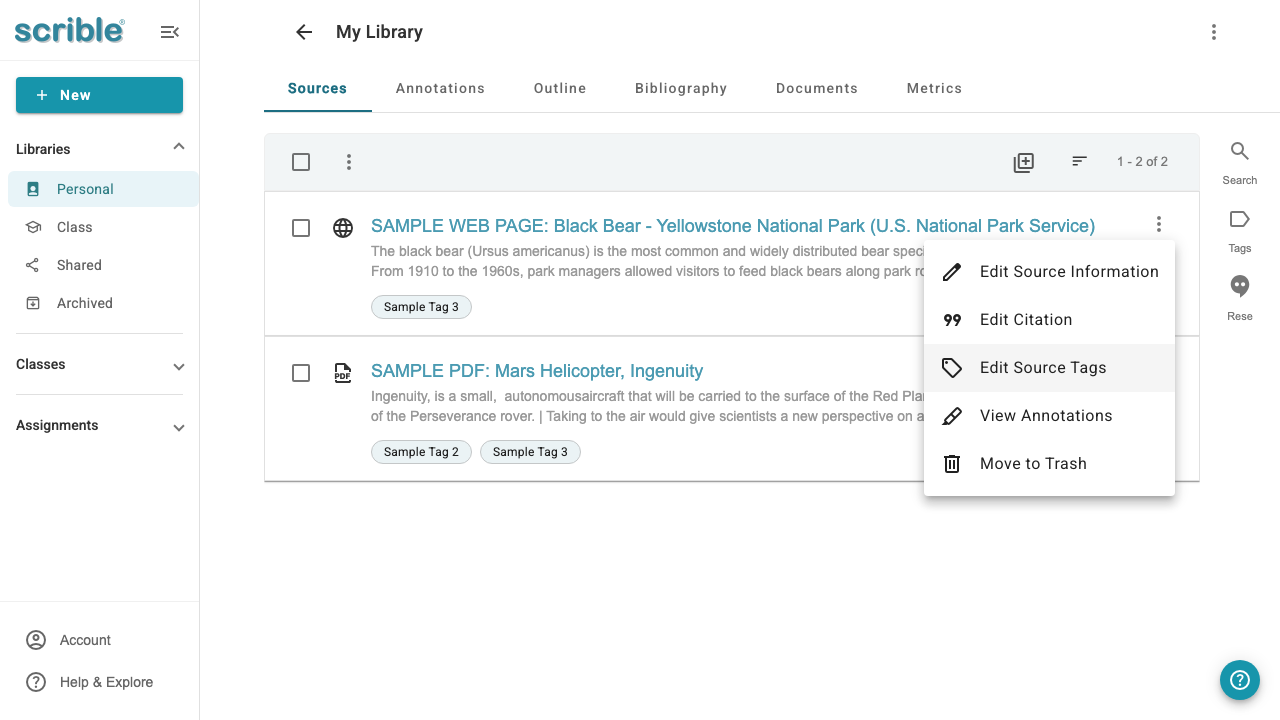
To manage tags on a source, click the kebab menu (⋮) on the source card and select Edit Source Tags from the menu.
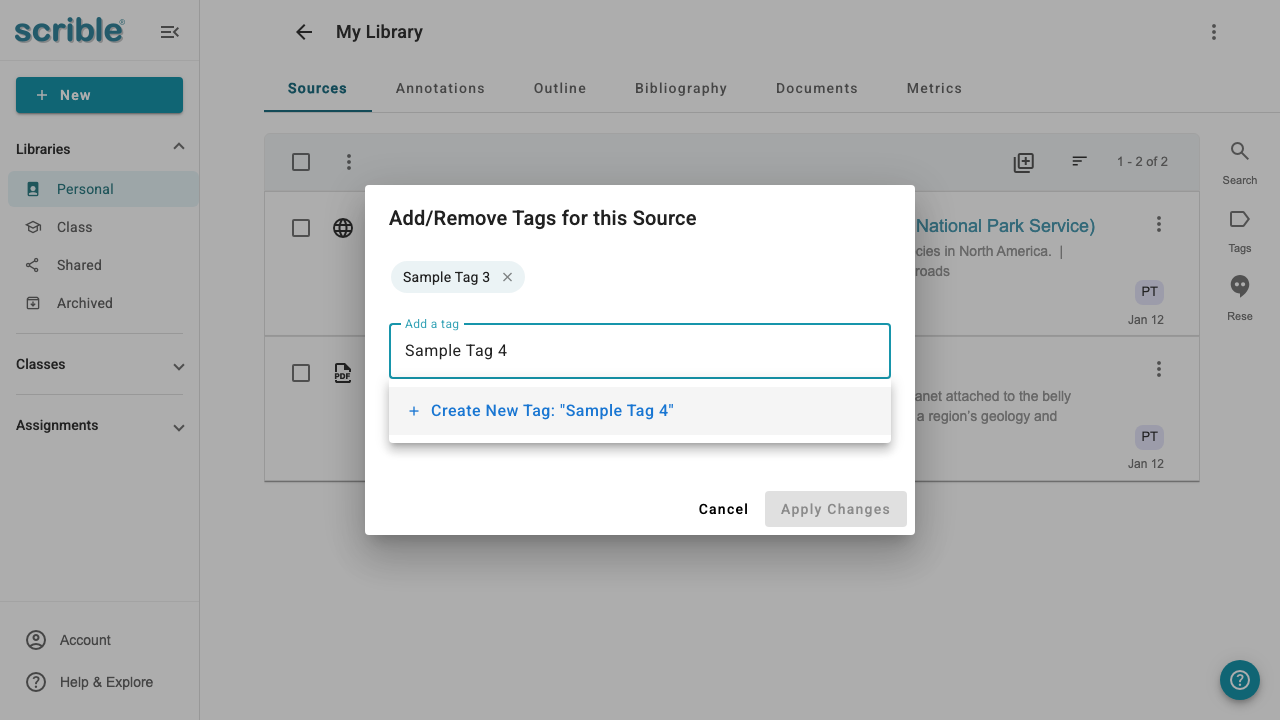
The tag dialog opens, showing any existing tags on the source. To add a new tag, click in the Add a tag field and start typing. If the tag doesn't exist yet, the typeahead dropdown will display a Create New Tag option.
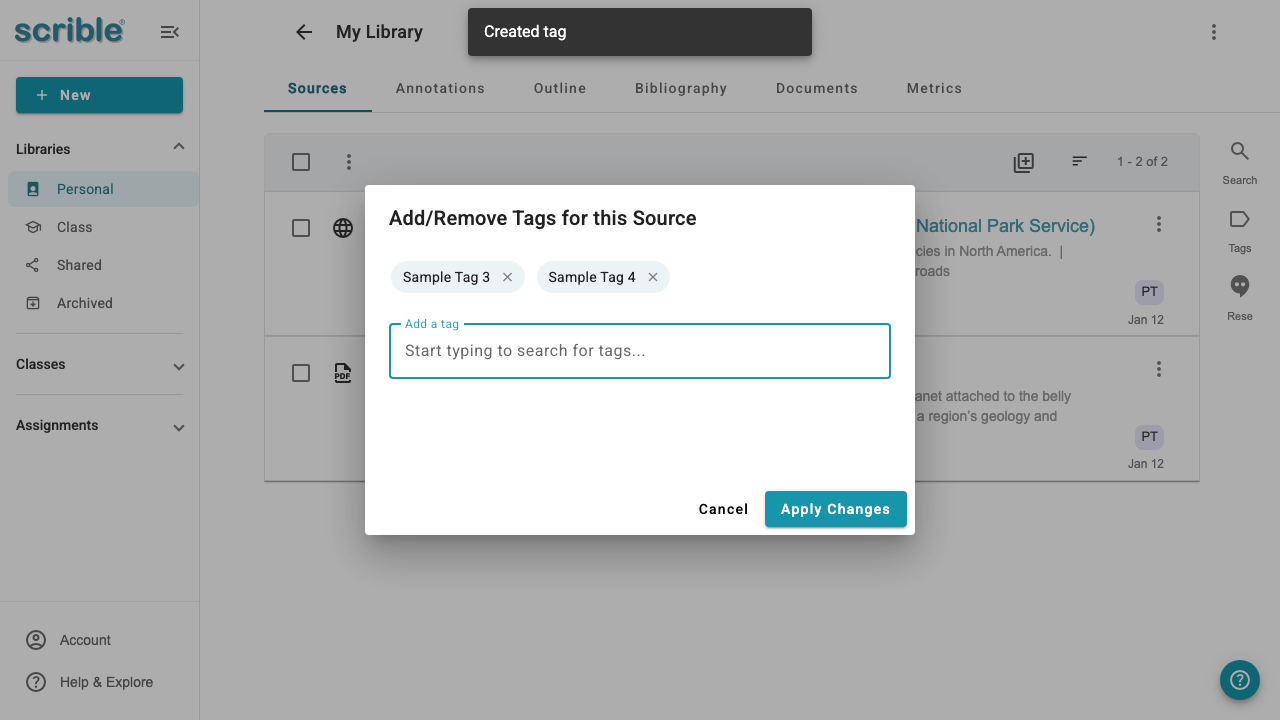
Click the Create New Tag option or press Enter. The new tag (Sample Tag 4 in this example) appears as a tag in the dialog alongside existing tags.
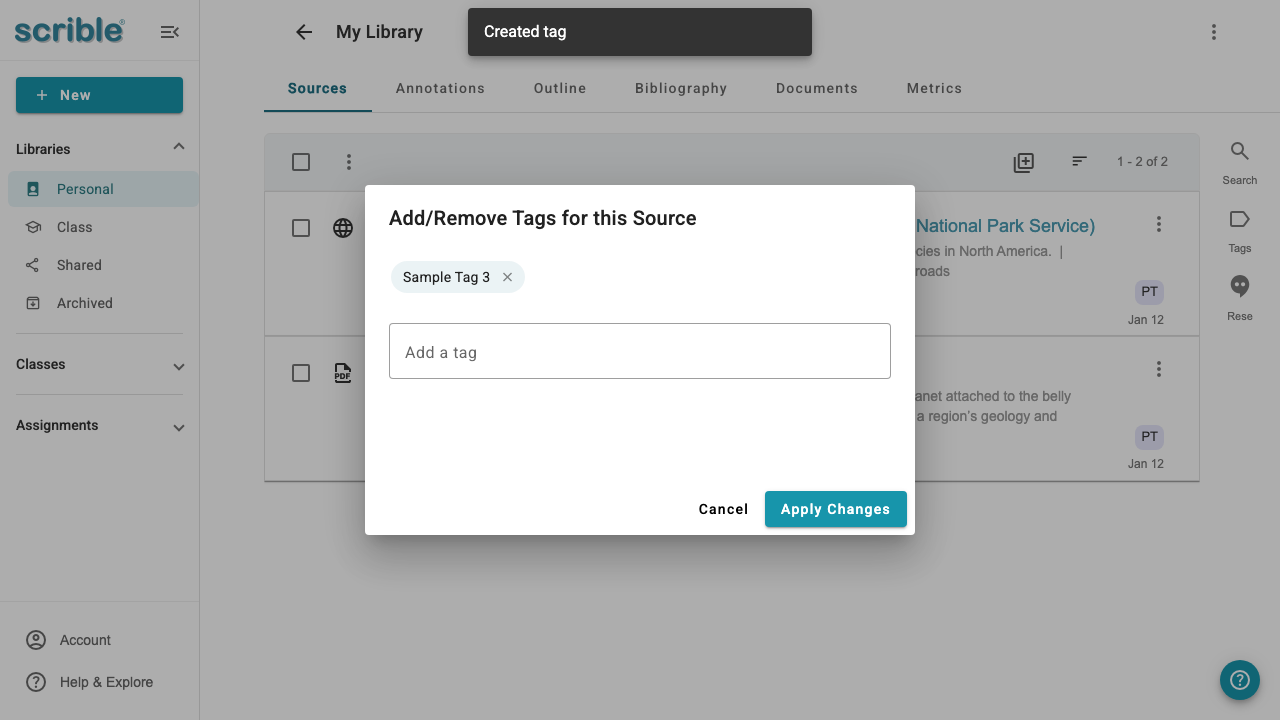
To remove a tag, click the X button next to the tag you want to remove. The tag (Sample Tag 4 in this example) disappears from the dialog.
Click Apply Changes to save your changes or Cancel to close the dialog.
Accessing Annotations
To view all annotations (including comments and highlights) for a specific source, click the kebab menu (⋮) on the source card and select View Annotations.
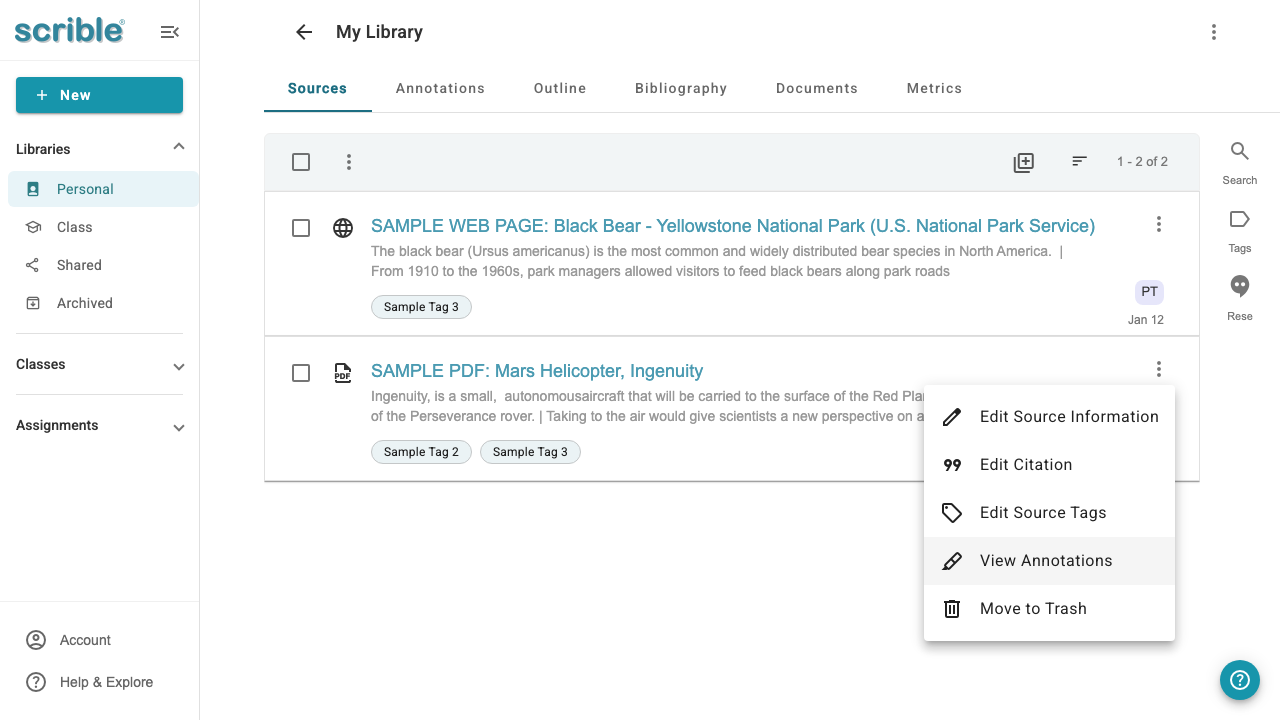
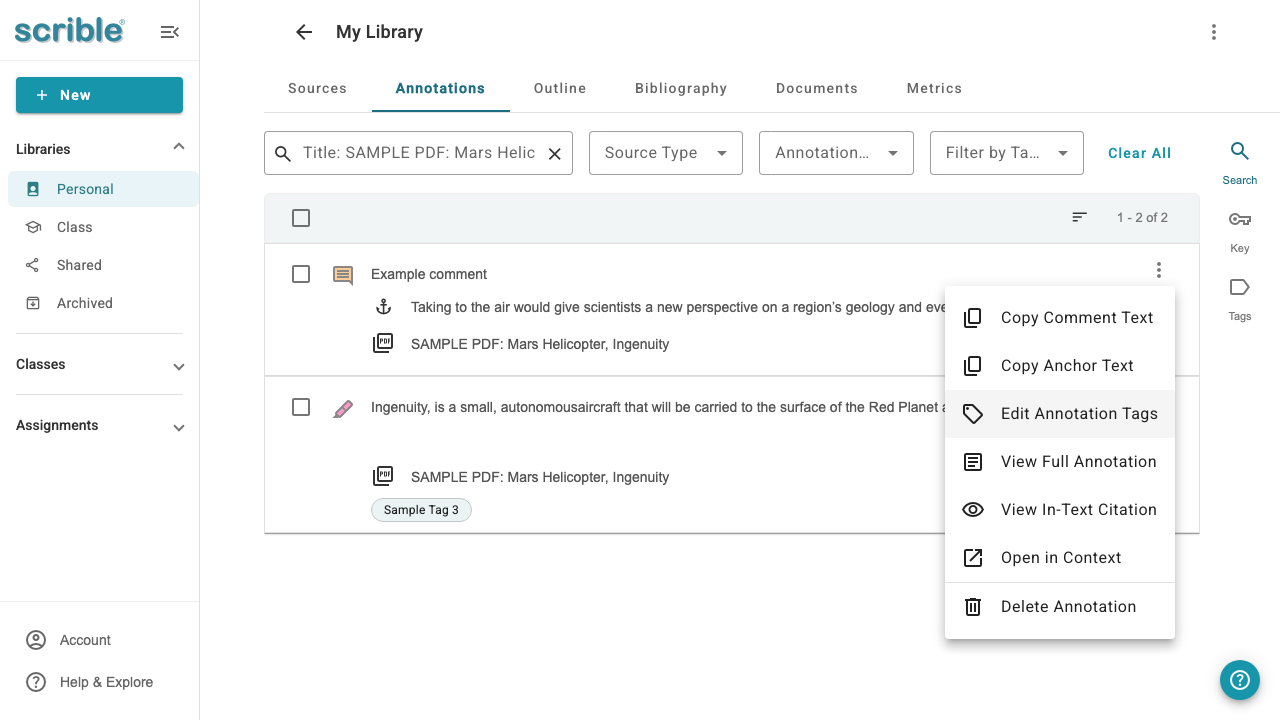
The annotations tab opens, filtered to show only that source's annotations. You can edit an individual annotation's tags through the kebab menu (⋮), exactly like editing tags for a source.
Bulk Tagging Annotations and Sources
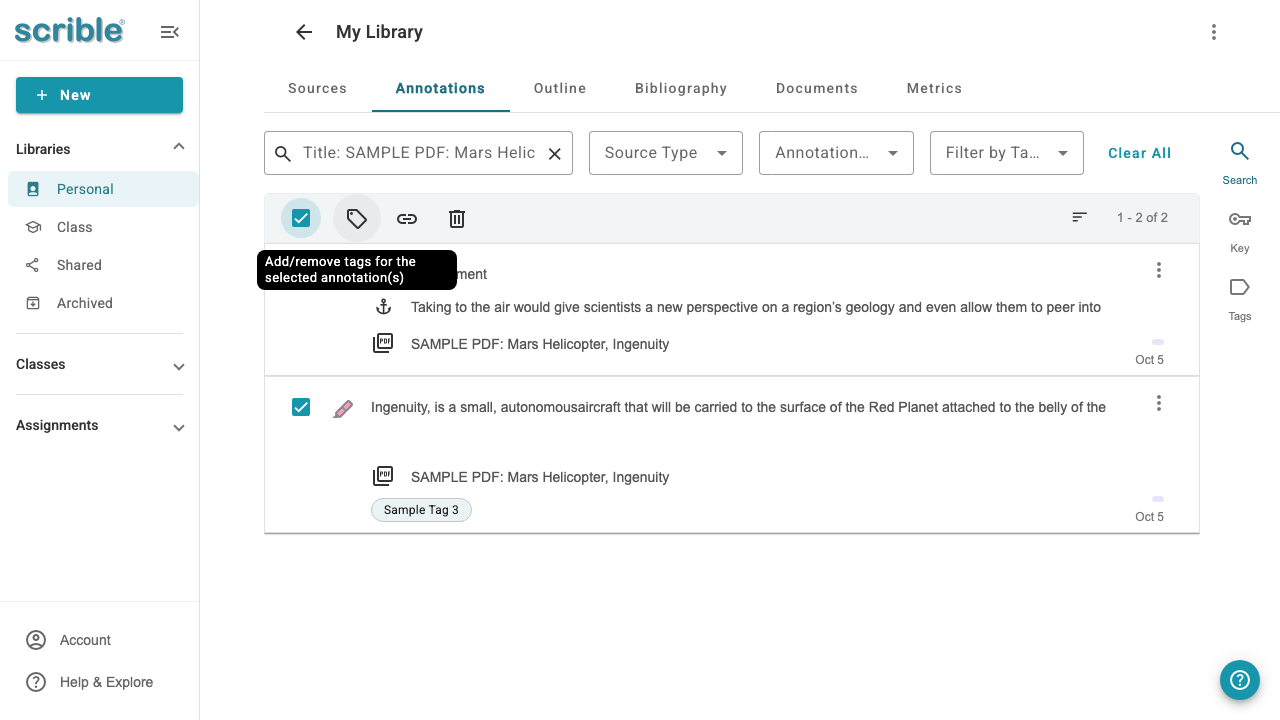
To add tags to multiple annotations at once, select the checkboxes next to each annotation you want to tag. Once you've selected at least one annotation, the bulk action toolbar appears. Click the tag icon in the toolbar to open the bulk tag editor. Bulk tagging of sources works exactly the same as bulk tagging of annotations, but in the sources tab instead of the annotations tab.
The bulk tag dialog shows all available tags, including any you've created previously. You can select existing tags by checking their boxes, or type in the search field to find tags or create new ones. Selected tags will be applied to all the annotations you checked. When you see the bulk tag dialog, any given tag may have a blank checkbox, a checkbox with a horizontal line through it, or a checked checkbox. A blank checkbox means this tag will be removed from any annotations you checked after you apply changes. A checkbox with a horizontal line through it means this tag will not be changed on any annotations you checked after you apply changes. A checked checkbox means that this tag will be added to any annotations you checked after you apply changes.
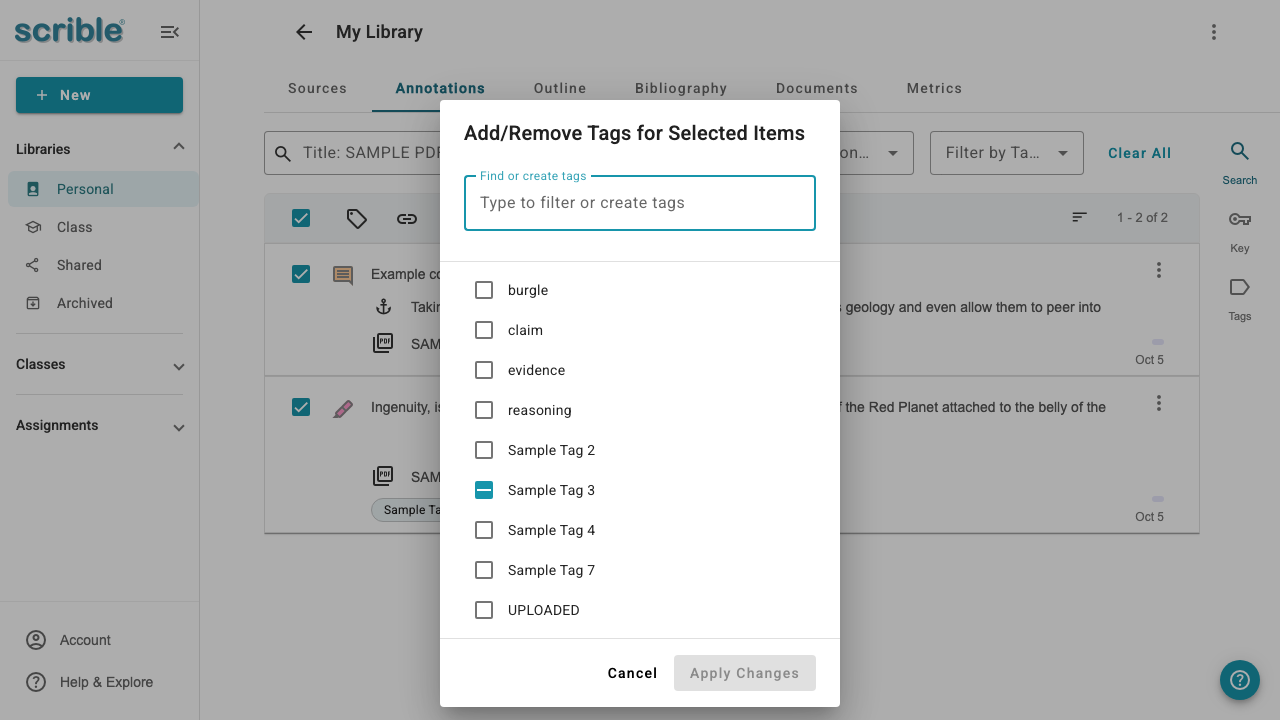
After selecting the tags you want, click Apply Changes to save them to all selected annotations.
Tagging Highlights and Comments in the Toolbars
You can also add tags to highlights and comments directly within the source viewer.
Tagging a Highlight
Click on the highlighted text within your source document. A grey menu appears. Click the tag icon (it looks like a label).
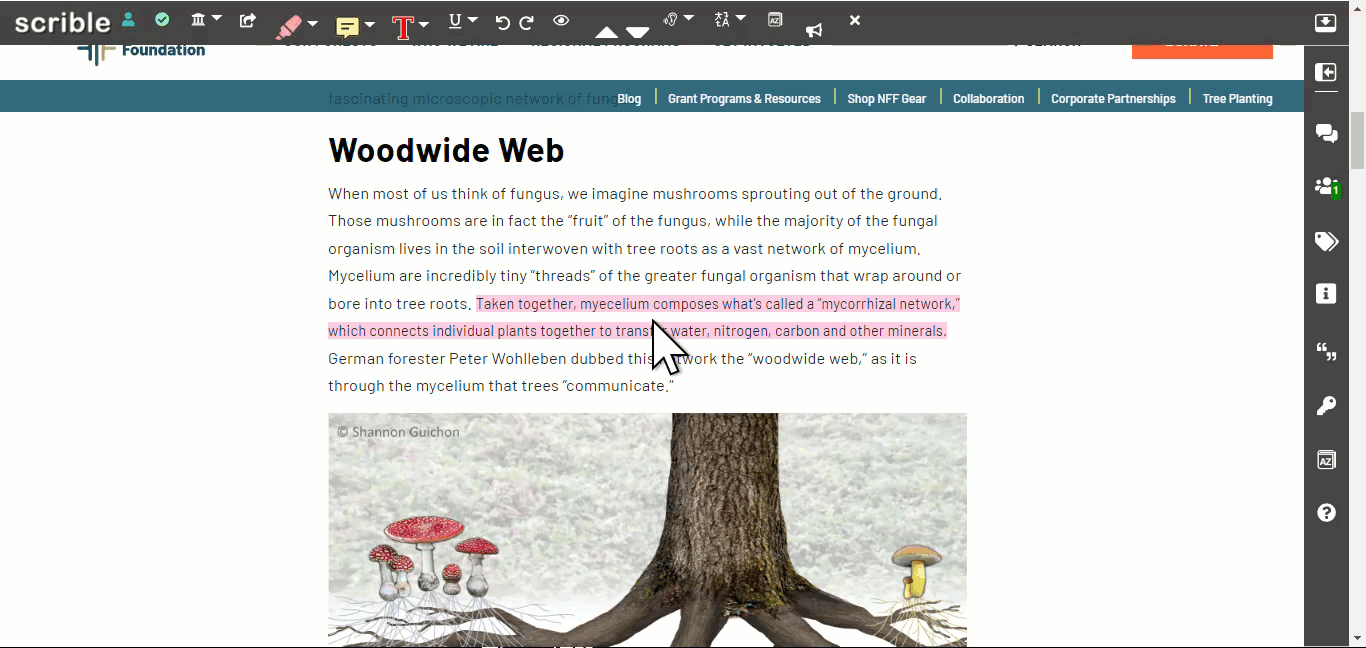
Type the tag name. Create a new tag or select an existing one from the dropdown list. Click Close at the bottom of the menu.
Tagging a Comment
Open the comment sidebar and locate the comment you want to tag. Click the tag icon in the upper-right corner of the comment box.
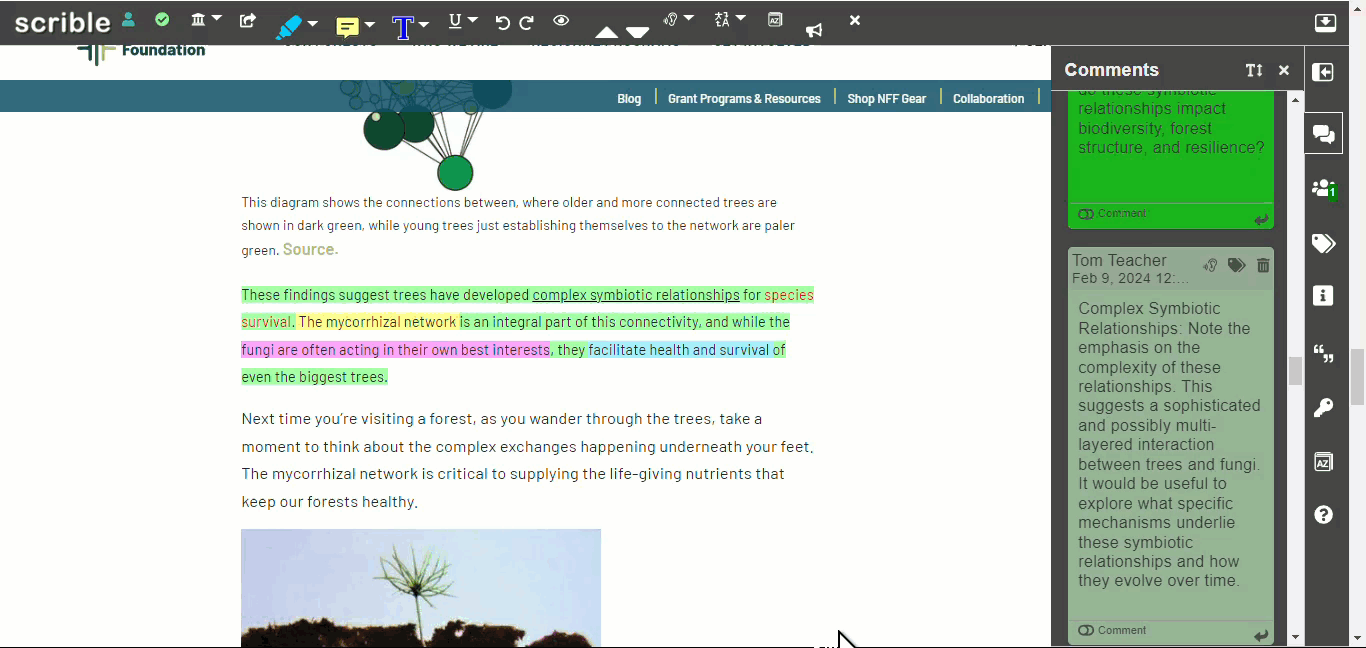
Type the tag name or select it from your existing list. Click Close to save.
Searching and Filtering by Tags
To search by tags, click the Search button on the right sidebar of your library. This opens the search interface where you can filter by tags, source type, or search across all content.
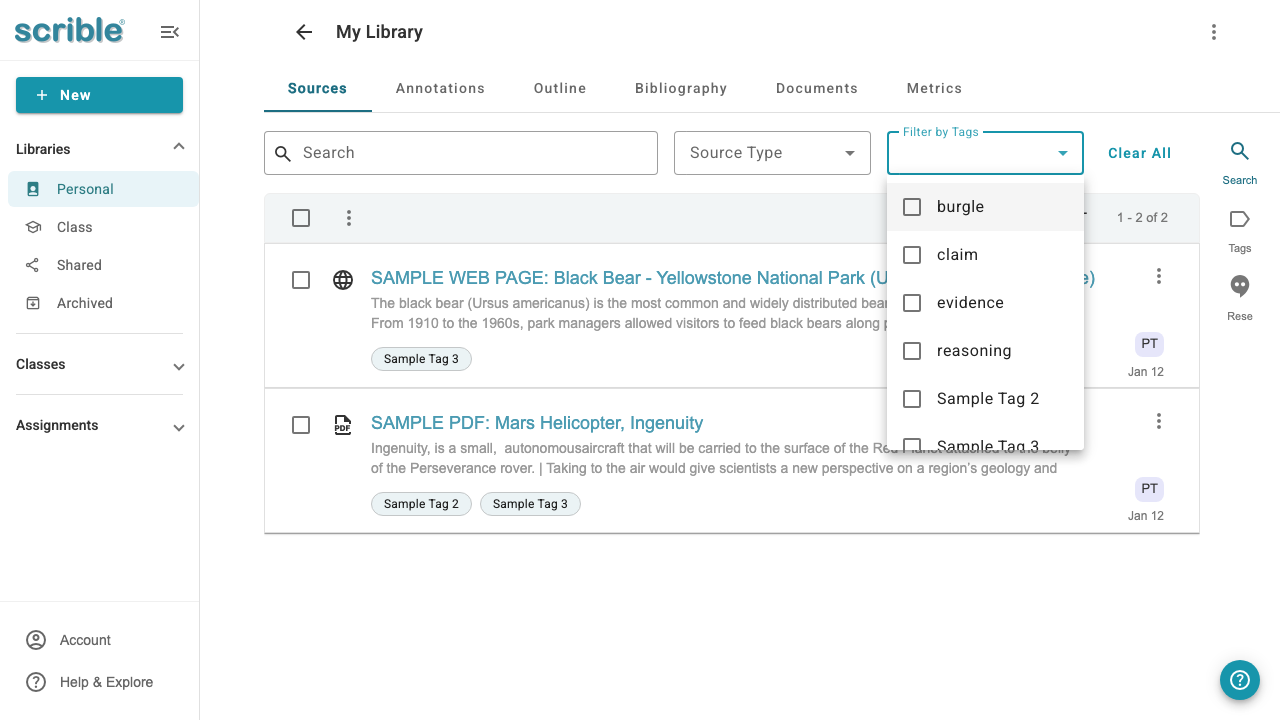
Click the Filter by Tags dropdown to select one or more tags to filter your library. When you filter by a tag, Scrible displays all sources and annotations that have been tagged with that term. The search also works across source titles, annotation text, PDF content, and webpage content.
Tips for Effective Tagging
Use consistent naming conventions for tags within specific research themes to make retrieval easier
Organize tags into logical categories for simpler navigation
Refine your tagging system as your project develops
Well-organized tags help you quickly locate relevant information, citations, and notes throughout your research process