
Using the Rese AI Chatbot
Rese is an AI chatbot that lets you ask questions about sources in your library. This guide shows you how to open Rese, ask questions, and save responses to your library.
The Rese AI Chatbot feature is available to Scrible Edu Pro users only; to check your current subscription, go to your account settings.
Access Requirements
For teachers: You must be an Edu Pro user, then enable Rese at the library or assignment level.
For students: Your teacher must enable Rese for a library or assignment before you can use it.
How to Use Rese
Opening Rese
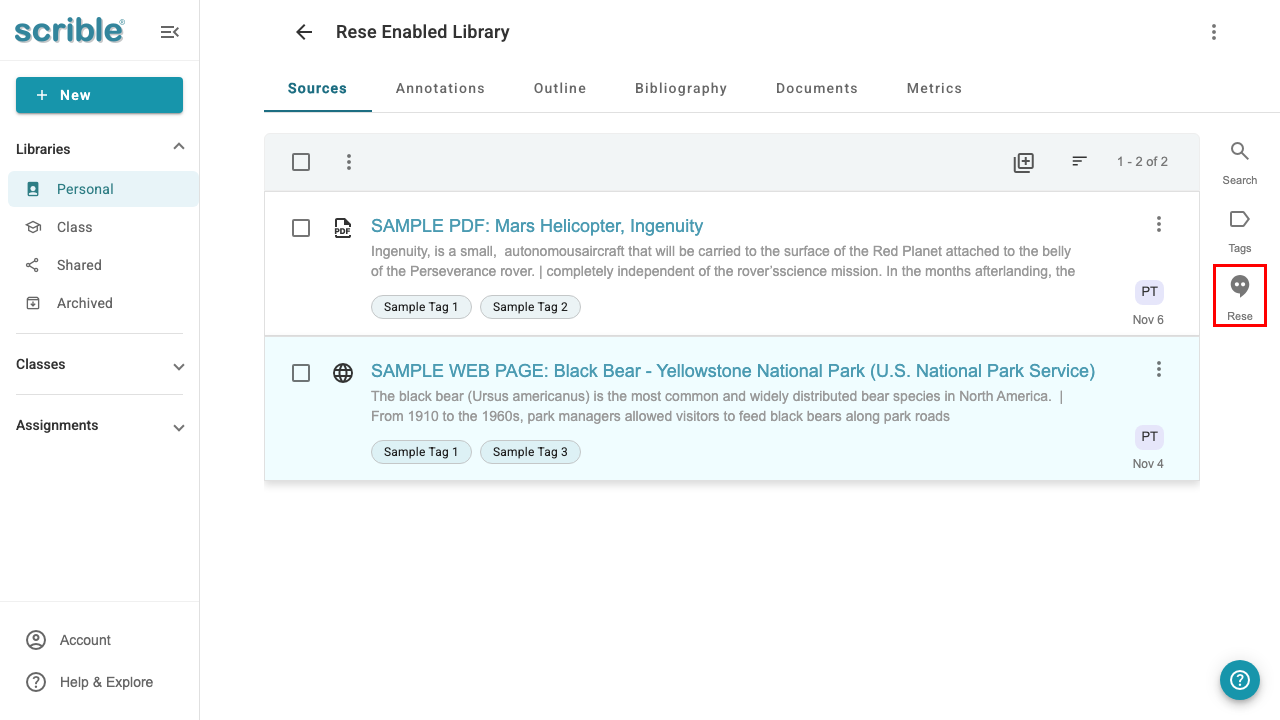
Navigate to a library that has Rese enabled
Click the Rese button in the right sidebar
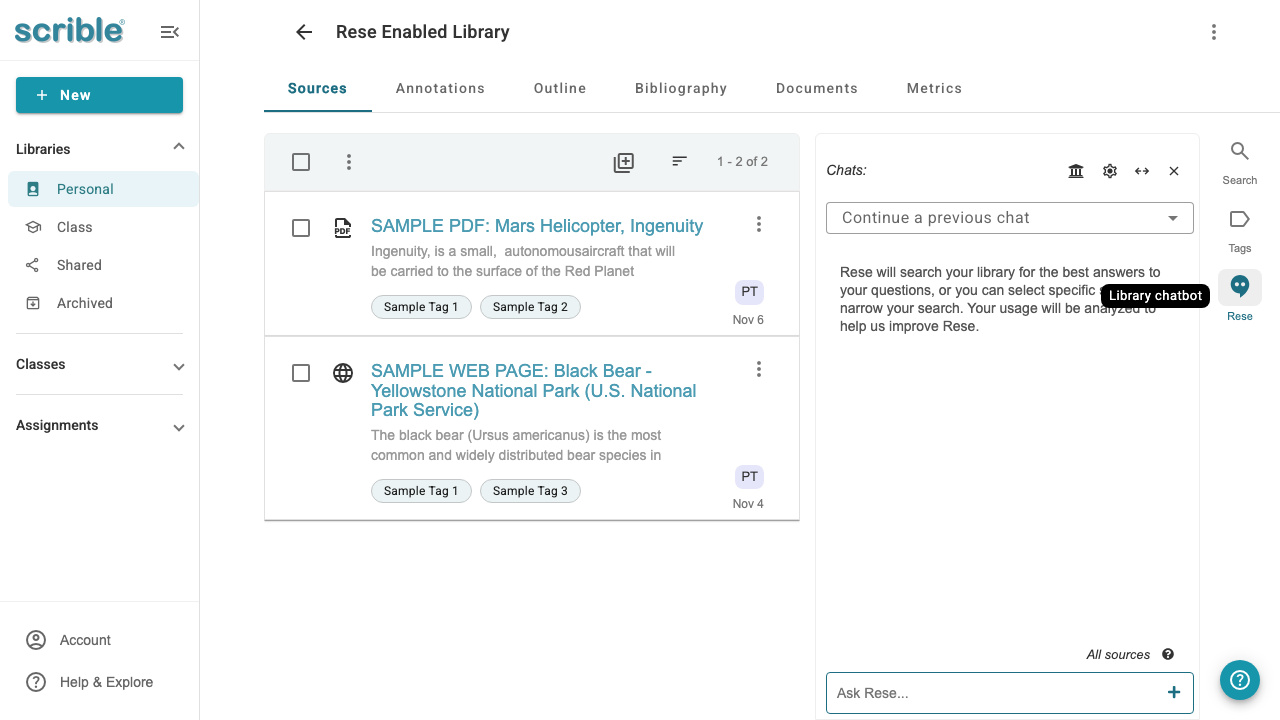
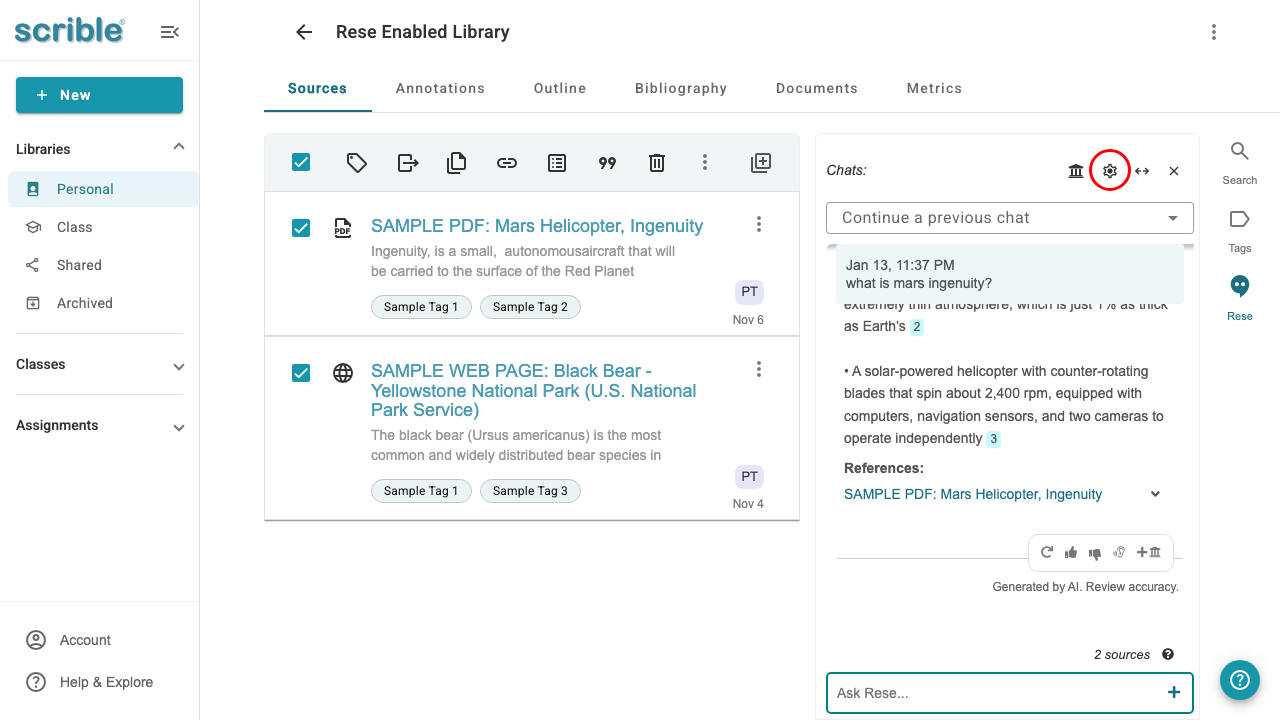
The Rese chat panel opens on the right side
Asking a Question
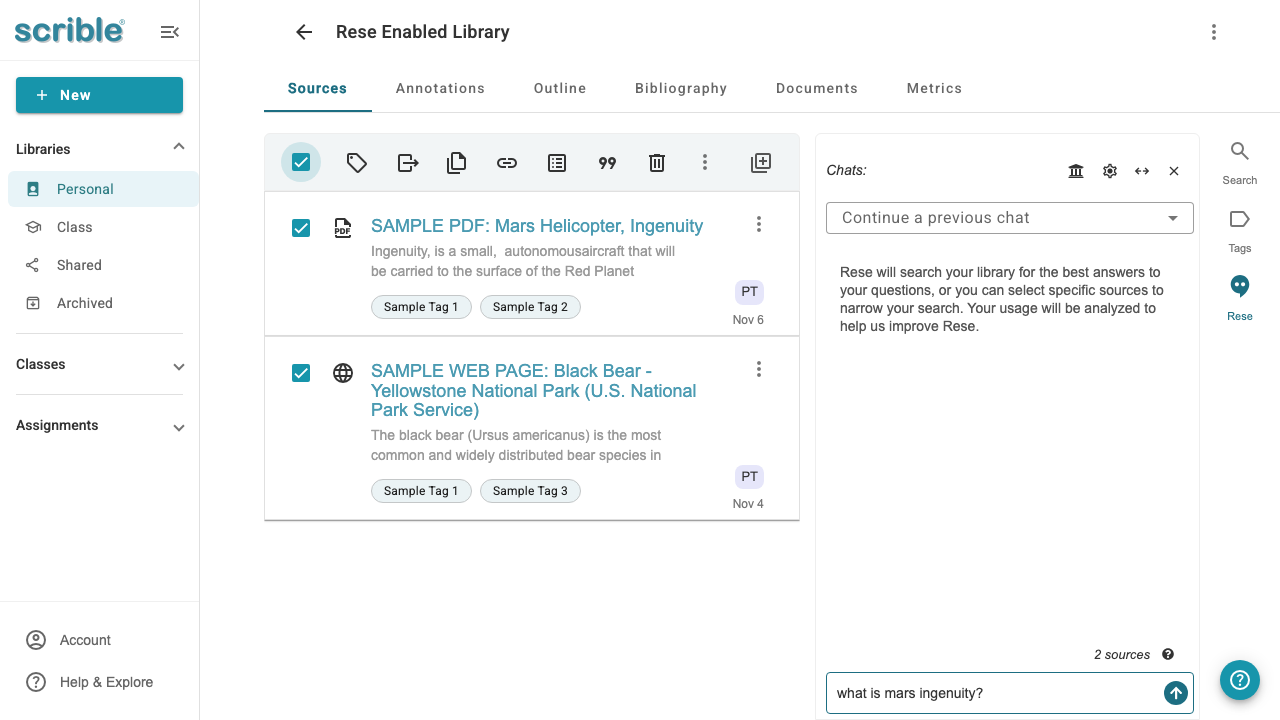
Type your question in the "Ask Rese..." text box
(Optional) Select specific sources to narrow your search using the checkbox next to each source
Press Enter or click send
Rese searches your library sources and provides an answer with citations, supported directly by evidence from your sources
Reviewing Responses
Responses include citations that link to specific passages in your sources. Hover over the citation numbers to trace quotes back to your sources. You'll see the quote Rese used as evidence for its answer highlighted in your source.
Follow-up questions within the same chat maintain conversation context. For different topics, select the plus (+) icon to the right of the "Ask Rese..." text box to begin a fresh chat. To revisit past chats, use the chat history dropdown ("Continue a previous chat") at the top of the Rese sidebar.
Saving a Response
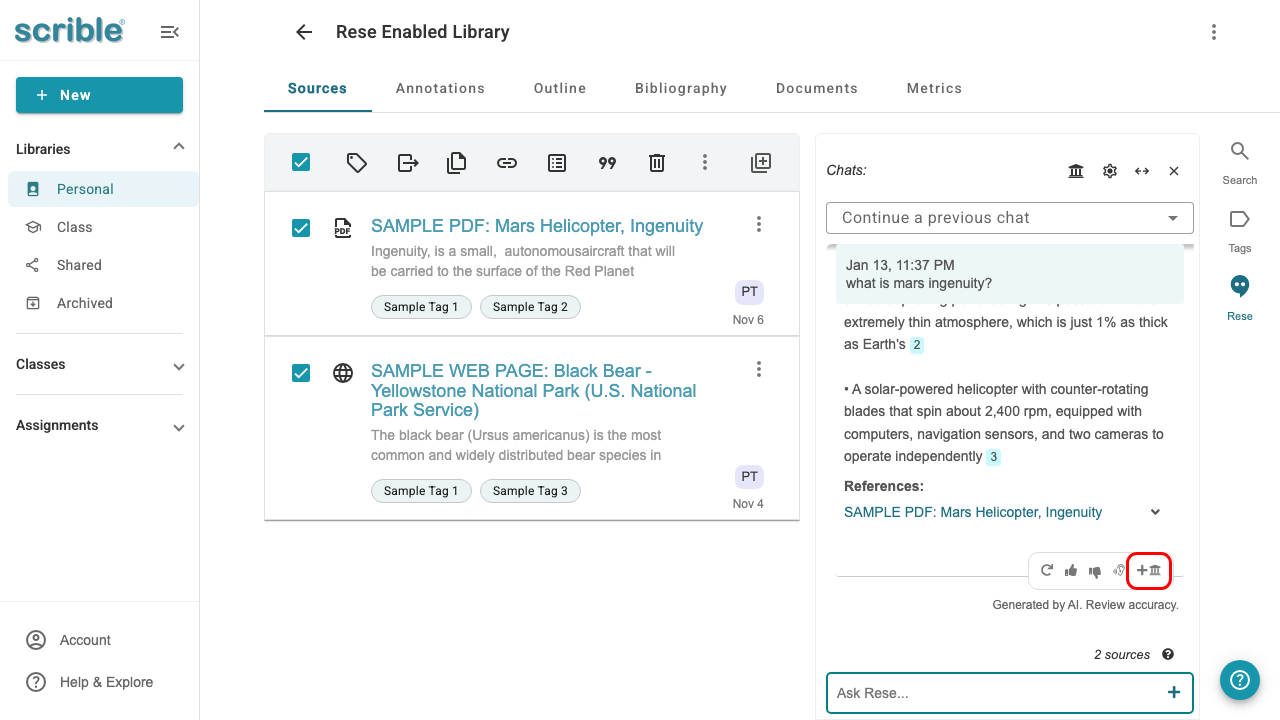
Click the Save to library button on a response
The response is saved as a "Gen AI" source in your library
You can annotate and cite saved responses like any other source
Adjusting Settings
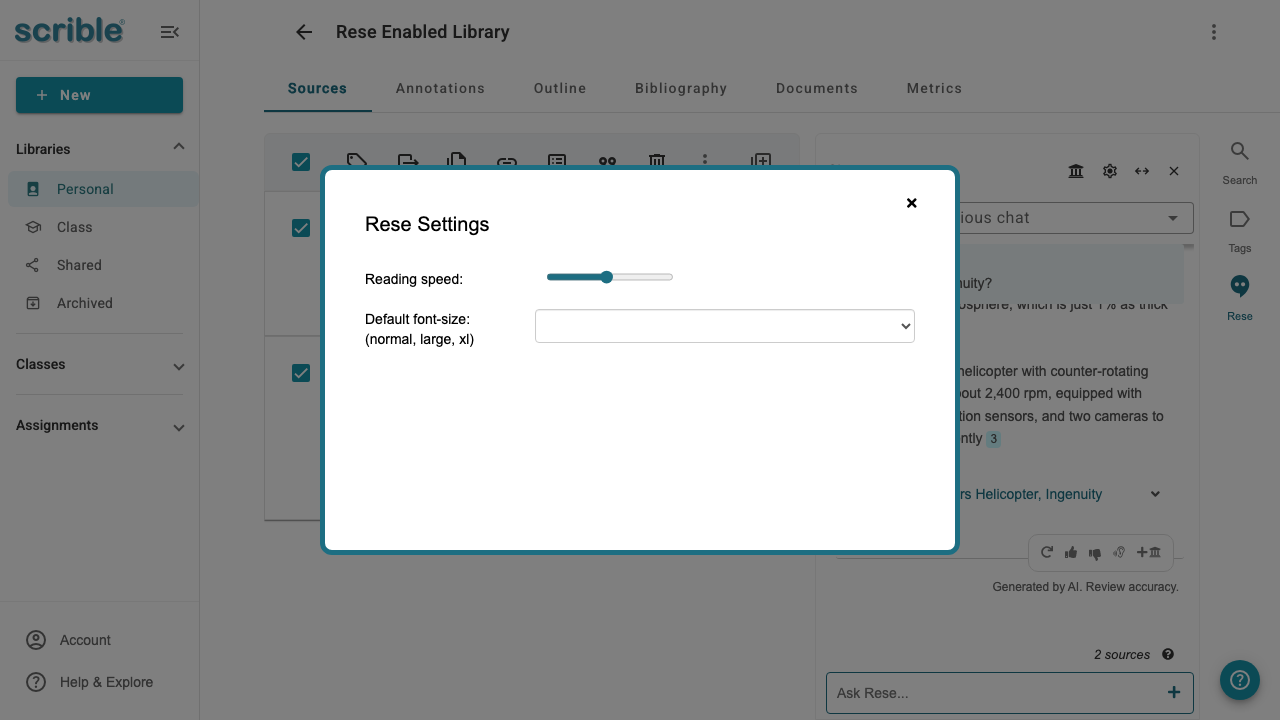
Click the settings icon in the Rese panel to adjust reading speed for text-to-speech or change font size.
Why Use Rese
Benefits of using Rese:
Credibility: Rese only searches within your specific library, not the entire web
Citability: Save responses in MLA, Chicago, or APA format
Accessibility: Adjust font size and use text-to-speech with customizable speed
Security: Your data stays within Scrible's infrastructure
Traceability: Citations connect answers directly to source passages for verification
Tips
Narrow your search: Select specific sources before asking to get more focused answers
Verify sources: Use citations to check where information came from
Save important responses: Convert helpful answers into citable sources
Provide feedback: Use thumbs up/down to help improve Rese's accuracy